


A solid recording of a video call is so much more than just a file. It’s a powerful tool for clarity, training, and accountability. When you record a conversation, you capture every key decision and action item, which helps prevent miscommunication and keeps everyone on the same page.
Why Recording Video Calls Is a Game Changer
Before you even think about hitting 'record,' it’s worth understanding just how valuable these recordings can be. Think of a recording as the ultimate source of truth after a busy meeting. No more back-and-forth about who agreed to what—the proof is right there, captured exactly as it happened.
This is especially critical now that so many of us are working in remote or hybrid setups, where these calls are our main way of collaborating. The whole world has shifted to virtual communication, and the numbers back it up. The global video conferencing market pulled in $7.0 billion back in 2022 and is on track to hit $12.0 billion by 2026. It's clear these tools are here to stay. You can dig deeper into these video conferencing statistics and what they mean for businesses.
Unlocking Training and Onboarding Opportunities
Imagine having a library of recorded calls at your fingertips. It’s an incredible training resource. New hires can watch actual client conversations or internal walkthroughs to get up to speed in record time. It's one thing to read a manual; it's another thing entirely to see your team's expertise in action.
For instance, a new support agent could watch a recording of a tricky troubleshooting call. That kind of real-world context is something a document just can't provide, and it dramatically shortens their learning curve.
When managed well, an archive of recorded video calls turns everyday conversations into a living knowledge base, creating lasting value for the whole company.
Repurposing Content for Maximum Impact
Your recordings don't have to just sit in a folder collecting digital dust. They're a goldmine of content waiting to be repurposed. A single conversation can be sliced and diced into multiple assets, stretching its value far beyond the original meeting.
Here are a few ideas:
- Marketing Snippets: Find a great customer testimonial or a killer product demo, clip it out, and share it on social media.
- Knowledge Base Articles: Take a detailed "how-to" call, transcribe it, and turn it into a step-by-step guide for your help center.
- Internal Training Modules: Pull key moments from several project kickoff meetings to create a best-practices video for new project managers.
Navigating Recording Laws and Ethics

Before you even think about hitting that record button, it’s crucial to get a handle on the legal and ethical side of things. A video call record isn't just a file on your computer; it's a piece of data governed by privacy laws that can change dramatically depending on where you and your participants are.
At the heart of it all is one simple concept: consent.
Understanding Consent Laws
Laws generally fall into two buckets: one-party consent and two-party consent (which often means all-party consent). In a one-party consent state, you're in the clear as long as one person on the call—and that can be you—agrees to the recording. But in a two-party state, you need explicit permission from every single person involved.
This is where it gets complicated. What if you're in a one-party state, but your client is in a two-party state? The golden rule is to always follow the stricter law. The safest bet, and my personal recommendation, is to just assume you need everyone's permission, every single time.
If you're doing business in Europe or with anyone in the EU, you also have to consider regulations like the GDPR. Keeping a GDPR compliance checklist handy is a smart move to make sure you’re not accidentally mishandling personal data.
Honestly, even if the law didn't require it, getting consent is just good business. It builds trust and shows respect. Kicking off a meeting by announcing you're recording keeps everything transparent and avoids any awkwardness down the road.
Getting permission doesn’t need to feel like a formal legal proceeding. A quick, friendly heads-up at the beginning of the call is all it takes.
Here are a few ways I’ve heard it done well:
- "Just a heads-up, I'm going to record this call for our records. Everyone good with that?"
- "To make sure I don't miss any of the great ideas here, I'm going to hit record now."
- "Morning, everyone. I'll be recording this session for team members who couldn't join. Please speak up if you have any concerns."
Taking this small step covers you legally and helps build a transparent, trustworthy relationship with your clients and team. It's a fundamental part of maintaining https://blog.screendesk.io/secure-video-conferencing/ and protecting everyone involved.
Choosing the Right Recording Tool
The tool you pick to record your video calls can make or break the final product. While platforms like Zoom, Google Meet, and Microsoft Teams have built-in recorders, they're really built for convenience, not for creating high-quality, reusable content. They get the job done for a basic archive, but they often fall short in some key areas.
For starters, these native recorders often compress the video and audio pretty heavily to save on server space. This results in files that are a bit fuzzy or muffled—fine for a quick internal rewatch, but not so great for a polished training module or a customer-facing webinar. You'll also run into storage limits and funky proprietary cloud formats that can be a real pain to download, edit, or share.
Native Recorders vs. Dedicated Software
This is where a dedicated tool like Screendesk really shines. These platforms are engineered from the ground up for one specific purpose: capturing crystal-clear recordings. They prioritize quality and a smooth workflow over just being another feature ticked off in a massive application.
The real difference comes down to intent. A built-in recorder is a meeting feature. A dedicated tool is a content creation engine. It’s about shifting your mindset from simply saving a call to crafting a valuable asset you can use again and again.
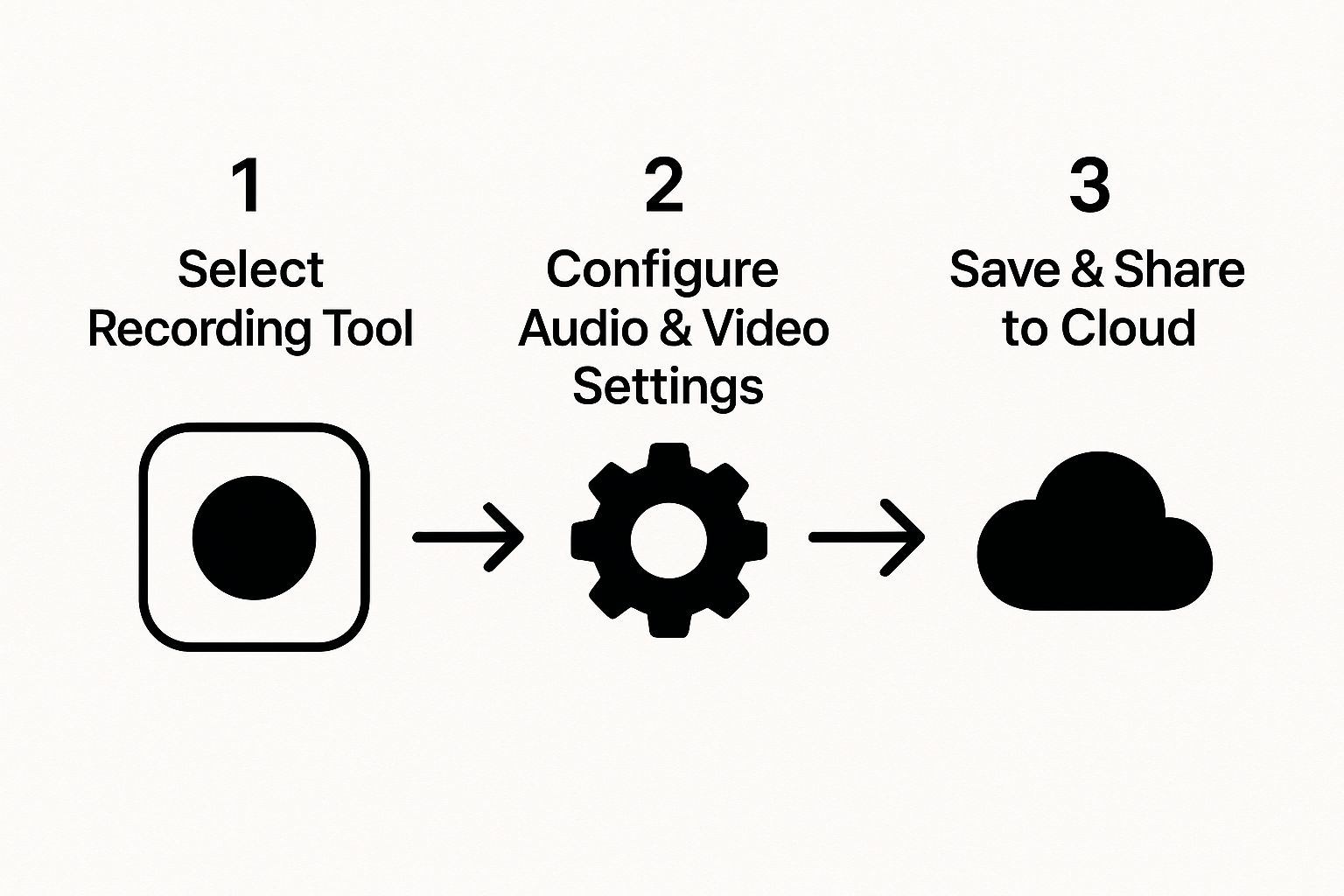
As you can see, your tool choice is the first and most important step, directly impacting everything that follows, from the settings you can configure to how you ultimately share the final video.
Comparing Recording Tool Capabilities
To make it clearer, let's look at a side-by-side comparison. This table breaks down what you typically get with a standard built-in recorder versus what a dedicated platform offers.
| Feature | Built-in Recorders (Zoom, Meet, Teams) | Dedicated Tools (e.g., Screendesk) |
|---|---|---|
| Recording Quality | Dependent on internet; often compressed (e.g., 720p) | Local recording; high-fidelity capture (up to 4K) |
| Audio/Video Tracks | Single combined track | Separate, individual tracks for each participant |
| Advanced Editing | Very limited or none | Extensive; separate tracks allow for precise audio/video adjustments |
| AI Features | Basic transcription, if any | AI-powered summaries, speaker labels, automatic chaptering |
| Sharing & Collaboration | Basic cloud link; often requires download | Branded sharing pages, analytics, instant collaboration tools |
| Storage & Export | Proprietary cloud formats, often with limits | Flexible export options (MP4, WAV); direct integrations |
The takeaway is simple: if you need more control and higher quality, a dedicated tool is the way to go.
Key Differentiators to Consider
Ultimately, the right choice boils down to what you need to do with the recording. Are you just saving a team stand-up for someone who was out sick? Or are you capturing a high-stakes customer testimonial that needs to look amazing? For a closer look at all the options out there, this detailed screen recording software comparison can help you weigh the features that matter most for your projects.
Here are a few of the biggest game-changers you'll find with dedicated software:
- Recording Quality: The best tools record locally on each person's computer. This is huge because it means a choppy internet connection won't ruin the final video. Everyone's feed is captured in perfect quality.
- Separate Tracks: Getting separate audio and video files for each participant is an editor's dream. Someone's dog starts barking? You can just mute their audio track for that moment without affecting anyone else. It gives you incredible control in post-production.
- Advanced Features: This is where you get into the really cool stuff. Think automatic transcriptions, speaker labels so you know who's talking, and even AI-powered summaries that pull out the key points for you. You just don't get this with the basics.
- Integration and Sharing: Dedicated tools are built to fit into your workflow. They offer smooth integrations with other apps and give you slick sharing options, like a link to a custom-branded page where stakeholders can view and comment on the video.
How to Record Calls with Screendesk
Let's be honest, most built-in recording tools feel like an afterthought. They bury essential settings in confusing menus, leaving you scrambling right before a call. Screendesk was built to be the exact opposite. Everything you need is right there, front and center, so you can capture a great recording without a 10-page user manual. The whole point is to record the conversation, not fight with the software.
This simplicity is more important than ever. Video calls are just how we work now. It’s no surprise that by 2025, an estimated 80% of smartphone users will be making regular voice and video calls. It’s becoming one of the most common things we do on our phones. You can dig into more of these trends on smartphone usage over at GeoPoll.
Setting Up Your First Recording
A few moments of prep before your call can make all the difference between a fuzzy, inaudible recording and a crisp, professional one.
Screendesk makes this part easy by automatically finding your connected microphones and cameras. All you have to do is pick the ones you want to use from a simple dropdown menu.
From there, you’re just one click away from starting.
The clean dashboard shows just how simple it is to kick off a recording. This kind of accessibility is what turns recording from a chore into a seamless part of your daily workflow.
Here are a few tips I always follow before hitting record:
- Do a Quick Mic Check: Record yourself saying a few words to make sure your audio levels are good. There’s nothing worse than finishing a great call and realizing no one can hear you.
- Frame Your Shot: Take a second to position your webcam. Make sure you're centered and have good lighting—it instantly makes your video look more professional.
- Pick Your Screen: If you’re sharing your screen, decide ahead of time exactly which window or monitor you want to show. It’s a simple step that helps you avoid accidentally sharing a personal email or sensitive document.
Managing and Saving Your Recordings
Once you hit record, Screendesk gets to work in the background. It smartly captures each person’s audio and video on separate tracks, which is a huge advantage for quality. This technique is called local recording, and it means one person's glitchy Wi-Fi won't ruin the entire video for everyone else.
This is where a dedicated tool really shines. Because Screendesk records directly on each person's computer, the final recording stays crystal clear, even if the live call had lag or connection drops.
When the call wraps up, your recording is automatically saved to your Screendesk library. From your dashboard, you can grab a shareable link, download the MP4 file for more advanced editing, or even embed it right into your help desk articles. It’s a smooth workflow that saves a ton of time, letting you focus on what to do with your recording instead of just trying to find it.
Creating a Professional-Quality Recording
It’s easy to think that hitting the “record” button is all you need to do, but the real secret to a great video call recording happens before the call even starts. A few simple checks can be the difference between a polished, useful video and a messy one you can't even use.
First off, always do a quick mic and camera test. It takes just a few seconds and saves you from that awkward "can you hear me now?" routine. Also, take a look around your room. Is there a lot of background noise? Try to find a quieter spot. Check your lighting, too—natural light from a window in front of you is a game-changer compared to having a bright light behind you, which just turns you into a silhouette.
These little habits really do add up. If you're specifically recording something like a job interview, where first impressions count, you'll want to get it perfect. For more detailed tips on that, check out this excellent guide on Recording a Video Interview Like a Pro.
Best Practices During the Call
Once you're in the meeting and the recording is rolling, a few small habits can keep everything professional and clean. The biggest one? Encourage everyone to mute their mics when they aren't talking. This simple act cuts out echoes, keyboard clicks, and other distracting noises, letting the main speaker come through loud and clear.
Good audio is everything. For a deeper dive into getting your sound just right, we have another guide specifically on screen recording with voice over.
The whole point is to make a recording where the conversation is the star of the show, not the technical issues. Clean audio makes your video a hundred times more valuable, whether you're using it for training or just reviewing notes.
This isn't just a niche concern, either. Think about the global scale of video calls. In Nigeria, for instance, over 75 percent of internet users were making monthly video calls in 2024. Clear, high-quality recordings are more important than ever. You can see more on these regional video calling trends to get a sense of the bigger picture.
Got Questions? We've Got Answers
Even with the best game plan, you're bound to run into a few questions when you start recording video calls. Let's tackle some of the most common ones I hear all the time.
Can I Actually Record a FaceTime Call with Audio?
Yes, you can, but Apple’s own screen recorder won't do the trick. For privacy reasons, it's designed to capture video only during a FaceTime call.
If you want both video and audio, you'll need a different approach. Your best bet is using a dedicated app like Screendesk on your Mac. Another option is to connect your iPhone to a Mac and use QuickTime Player to capture the recording there.
Local vs. Cloud Recording: Which One Is Better?
When it comes to quality, local recording is the clear winner, hands down. It works by capturing each person's video and audio feed directly on their own computer. This means a spotty internet connection won't ruin your final file.
Cloud recording, which is what you get with the built-in recorders in tools like Zoom, captures the live stream as it happens. This makes it totally vulnerable to lag, pixelation, and other glitches.
Local recording is the secret sauce for getting that crisp, professional look and sound, even if the live call itself was a bit choppy. It's how you get studio-quality results from a remote conversation.
What's the Best File Format to Use?
For video, stick with MP4. It's the universal standard for a reason—it gives you a fantastic balance of high quality and manageable file size. Plus, it works on pretty much every device and editing software out there.
If you only need the audio, MP3 or WAV are both excellent choices. Any good recording tool should let you export your files in these formats without a fuss.
How Can I Make My Audio Sound Better?
Let's be honest, bad audio can kill a great recording. You don't need a professional studio, but a few small tweaks can make a massive difference in how clear you sound.
- Get an External Mic: Seriously, even an inexpensive USB microphone will be a night-and-day improvement over the one built into your laptop.
- Find a Quiet Spot: Background noise is your enemy. Try to record in a room with soft surfaces—think carpets, curtains, or even a closet full of clothes—to absorb echo.
- Pop on Some Headphones: This is a simple one, but it's crucial. Wearing headphones stops your mic from picking up the sound from your speakers, which is the main cause of that awful feedback loop.
Ready to skip the technical headaches and create crystal-clear recordings? Screendesk gives you high-quality local recording and a super simple interface. Start your free trial at Screendesk.io and see the difference for yourself.
