


Have you ever found yourself staring at a wall of text, trying to figure out how to use a new app? It's like being handed a map with no landmarks. We've all been there. Text-only instructions often miss the mark because they force our brains to translate static words into actions, leaving way too much room for error.
This is exactly the problem screen recording software with voice solves. It cuts through the confusion and replaces guesswork with a clear, visual walkthrough.
Why Text Explanations Fall Short
Think about the last time you had to assemble furniture. You get two choices: a dense, 50-page manual with jargon and confusing diagrams, or a quick two-minute video where someone shows you exactly which screw goes where, explaining it as they go.
Which one do you pick? The video, right? Every single time.
This simple preference reveals a massive communication gap, especially when explaining digital tasks. Text-based guides, whether they’re in a support ticket or a training doc, force the reader to do all the heavy lifting. They have to read the words, imagine the steps, find the right buttons on their screen, and hope they got it right.
It’s a recipe for frustration. That back-and-forth between the instructions and the screen is where things go wrong, wasting time and patience. The real problem is that text just isn't great at showing context, timing, or the little details that matter.
The Limits of Words Alone
When you try to explain something on a screen using only text, you run into a few big problems:
- No Visual Context: Trying to describe where a button is can be incredibly awkward. "Click the gear icon in the top right, then find the third option in the dropdown menu" is clunky and easy to get wrong.
- Easy to Misinterpret: What's obvious to you might be totally confusing to someone else. The same sentence can be understood in a dozen different ways, leading to simple mistakes.
- Painfully Inefficient: Explaining a multi-step process can take paragraphs of writing. A 30-second screen recording can show the same thing perfectly, saving everyone a ton of time.
It's not just a feeling; the data backs it up. Research shows that viewers retain 95% of a message when they watch it in a video, compared to just 10% when reading it in text. The difference is staggering.
The Power of Showing and Telling
This is where screen recording with voice completely changes the dynamic. When you record your screen and talk through the steps, you’re creating an experience that’s easy to follow. You aren't just telling someone what to do; you're showing them.
Adding your voice is the secret sauce. It brings a human touch and adds another layer of clarity. You can point out tricky spots, explain why a certain step is important, or share a quick tip.
This combination of seeing and hearing closes the gap between instruction and understanding. It turns a frustrating puzzle into a simple, guided tour, making it an indispensable tool for customer support, team training, or any kind of remote collaboration.
How Screen Recording Software with Voice Works
At its heart, screen recording software with voice is like having a tiny camera crew living inside your computer. Instead of filming a real-world scene, it captures everything you do on your screen while recording what you say through your microphone. The real magic happens when it flawlessly syncs these two things—what you're showing and what you're saying—into a single, easy-to-understand video.
Think of it this way: a screenshot is a still photo. It captures a single moment but gives you none of the story behind it. Adding a screen recording without sound is like watching a silent movie; you see the action, but you're left guessing the context. But when you add your voice, it becomes a complete narrative. You're not just showing someone what to do; you're explaining it.
And this isn't just for the super tech-savvy. Modern tools have made this process incredibly straightforward. You pretty much just hit "record," and the software starts capturing your on-screen movements, clicks, and typing, all while you narrate your way through it.
Capturing the Visuals and Audio in Sync
Before you hit record, you first decide what you want to capture. Good software gives you the flexibility to frame your shot perfectly, keeping the video focused and professional.
- Full Screen: This records your entire monitor, which is great for showing a process that jumps between different applications.
- Specific Window: This option locks the recording to just one app, like your web browser, hiding all the other clutter on your desktop.
- Custom Area: My personal favorite. You can draw a box around a specific part of your screen, which is perfect for zeroing in on a single menu or feature.
As the software records your screen, it’s also listening to your microphone. It captures your voice and lines up the audio track perfectly with the video frames. This timing is absolutely crucial. When you say, "Now, click this button right here," your audience needs to see your cursor pointing to that button at that exact moment. That perfect synchronization is what turns a simple recording into an effective walkthrough.
The real power of this technology lies in its ability to combine visual demonstration with human explanation. It bridges the gap between seeing and understanding, making it one of the most effective communication tools for digital tasks.
It's no surprise that more and more people are relying on this technology. The global market for screen recording software hit an estimated $2.5 billion in 2024 and is on track to reach $6.8 billion by 2033. This growth is all about the rising need for clear, simple communication in a world of remote work, online training, and content creation. You can find more data on this trend over at Archive Market Research.
From Raw Footage to a Polished Video
Once you’re done and you hit "stop," the software bundles the video and audio into a single file. This is your raw footage, but the next step is what gives it that professional polish. Even the most basic tools offer simple editing features to clean things up.
This is where you can snip out that awkward pause at the beginning or trim off the moment at the end where you fumbled to find the stop button. You don't need to be a video editing pro. The goal is just to cut out the fluff and deliver a clear, direct message.
Better yet, many modern platforms like Screendesk take care of the heavy lifting for you. They automatically compress the video to a manageable size without losing quality, so you can easily share it in an email, a helpdesk ticket, or just by sending a link. To see how simple this can be, check out our guide on how to screen record with a voice over. It’s all about getting your helpful video to the person who needs it, turning their complex problem into a simple, watchable solution.
Must-Have Features for Effective Recording
Choosing the right screen recording software with voice is a lot like picking a tool from a toolbox. You wouldn't use a sledgehammer to hang a picture, right? In the same way, you don't want a basic, bare-bones recorder when you're trying to create a polished training guide. It’s all about matching the tool to the job at hand.
Some screen recorders are super simple—perfect for a quick, one-off recording. Others are powerhouse suites, packed with features that let you create professional-quality videos without breaking a sweat. Figuring out which features are non-negotiable from the start will save you a ton of headaches later on.
Core Recording Capabilities
First things first, any software worth its salt has to nail the basics: capturing your screen and your voice with crystal clarity. If the foundation is shaky, all the fancy add-ons in the world won't save it.
-
High-Definition (HD) Video: Your recording has to be sharp. If people are squinting to read text or make out icons, you've already lost them. Look for software that records in at least 1080p to make sure every detail comes through loud and clear.
-
Microphone and System Audio: This one is non-negotiable. You need a tool that can record your voice from a microphone and capture the sounds coming from your computer at the same time—think notification sounds or in-app audio. This combo is what creates a complete, easy-to-follow experience.
-
Flexible Recording Area: You should be in complete control of what your audience sees. The best tools let you capture your entire screen, a single application window, or even a custom-drawn area. This flexibility keeps your video focused and free of any distracting desktop clutter.
Think of it like this: the core of any great screen recording tool rests on three pillars.
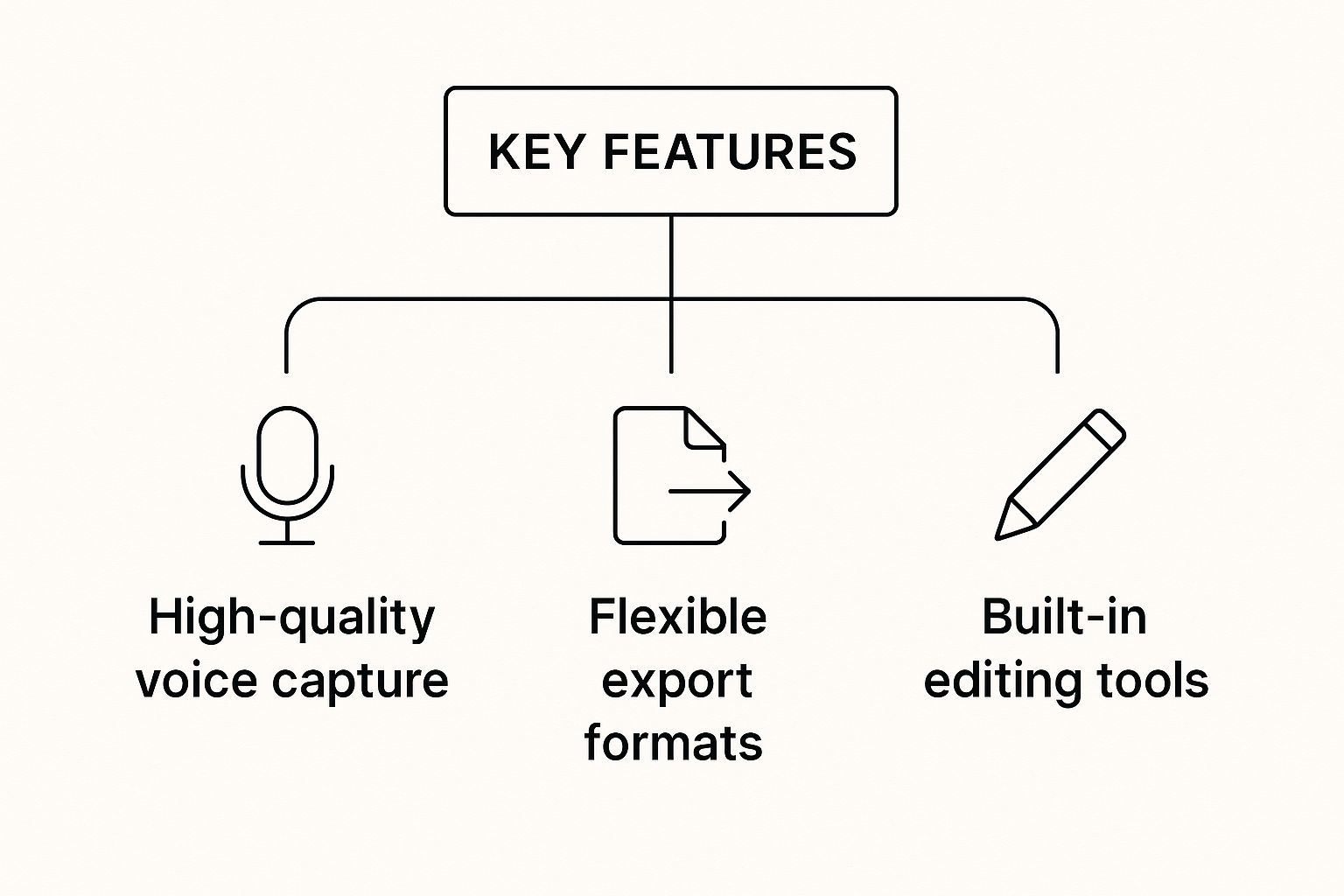
As you can see, it all comes down to high-quality capture, versatile export options, and the power to make quick edits. When these three work together, your workflow becomes seamless.
Tools for Guiding Viewer Attention
A truly great recording doesn’t just show what’s on the screen; it directs the viewer’s eye exactly where it needs to go. This is where annotation tools become your best friend. They're your digital laser pointer, making sure everyone follows along.
Imagine a weather forecaster pointing to a storm system on a map—annotations do the same thing for your screen, visually shouting, "Look here!"
Common annotation tools include:
- Arrows and shapes to highlight specific buttons or menus.
- Highlighters to draw attention to a key sentence or number.
- Spotlight effects to make your cursor movements easy to track.
These simple visual aids can make a world of difference in how well your instructions are understood.
Post-Recording Polish and Sharing
Let's be honest: nobody nails a perfect recording on the first take. That’s why basic editing features are a must-have, not just a nice-to-have. You don't need to be a Hollywood film editor, but a few simple tools can make your video look infinitely more professional.
The single most valuable editing feature is the ability to trim the start and end of your video. It lets you slice off the awkward fumbling as you begin and end the recording, leaving you with a clean, intentional final cut.
Beyond trimming, make sure you can export your video in different formats. MP4 is the universal standard that works just about everywhere, but having options like GIF for short, looping clips can be incredibly handy.
And finally, sharing should be effortless. The best software gives you a shareable link the second you stop recording, so you can pop it into an email or a helpdesk ticket and get on with your day.
Feature Checklist for Screen Recording Software
To help you decide what you truly need, it's useful to separate the essentials from the advanced "power-user" features. Not everyone needs a full-blown production studio.
This table breaks down the key features for both casual and professional use cases.
| Feature Category | Essential for All Users | Advanced for Power Users |
|---|---|---|
| Recording | HD Video (1080p), Microphone & System Audio, Full Screen & Area Capture | 4K/UHD Resolution, Webcam Overlay, Green Screen Effects |
| Annotation | Arrows, Highlighters, Basic Shapes, Cursor Highlight | Text Overlays, Callouts, Animated Elements, Zoom & Pan |
| Editing | Trimming & Cropping, Basic Cuts | Multi-track Timeline, Transitions, Audio Enhancement Filters |
| Sharing | MP4 Export, Instant Shareable Link | Multiple Export Formats (MOV, GIF), Cloud Storage Integration, Analytics |
By understanding this distinction, you can confidently choose screen recording software with voice that has everything you need without paying for complex features you’ll never touch. This ensures you get a tool that’s both powerful and perfectly suited to your workflow.
Solving Customer Problems with Video
We've all been there. A customer is stuck, unable to find a feature in your software, and you can practically feel their frustration mounting through the screen. A support ticket comes in, kicking off a painful chain of back-and-forth emails. It’s a mess of confusing text descriptions and screenshots that never seem to capture the full picture.
Now, imagine a different way. Instead of another long-winded email, the support agent hits record on a quick, two-minute video. They share their screen, walk the customer through the exact steps needed, and use their cursor to point out the feature in question—all while explaining things with a friendly voiceover. The customer gets a crystal-clear solution in minutes, not hours.
This is exactly why using screen recording software with voice is such a game-changer for customer support. It turns a frustrating, drawn-out process into a single, helpful interaction that solves the problem and actually makes the customer feel valued.
Turning Frustration into Satisfaction
In customer support, time is everything. The longer a ticket sits open, the thinner a customer's patience gets. While text is fine for simple questions, it often falls flat when dealing with anything technical or visual. An agent can spend 15 minutes carefully typing out a detailed explanation, only for the customer to misread a step and come back with even more questions.
A screen recording with a voiceover cuts right through that confusion. It’s the closest you can get to sitting right next to your customer and showing them exactly what to do.
By giving someone a visual and verbal guide, you eliminate all the guesswork. They see precisely where to click and hear the "why" behind each action. This leads to faster resolutions and a much, much better experience.
This small change has a huge ripple effect on key support metrics. Teams that embrace video can close complex tickets faster, slash the number of back-and-forth replies for each issue, and boost their first-contact resolution rates. It’s a win for the support team and an even bigger win for the customer.
High-Value Scenarios for Video Support
While a quick video can help with almost any support question, it really shines in a few high-impact situations. When you integrate a tool like Screendesk directly into your helpdesk, you start to unlock some serious efficiency gains.
Here are a few scenarios where screen recordings are invaluable:
- Troubleshooting a Software Bug: A customer reports a bug, but your team can't seem to replicate it. The agent can send a video showing them how to find and share console logs, or even better, the customer can record their own screen to show the bug as it happens.
- Demonstrating a Hidden Feature: Don't just tell a customer about a powerful feature they might be missing. Show them! A short, personalized video can demonstrate its value and walk them through how to use it step-by-step.
- Building a Video FAQ Library: Why type the same answer over and over again? Teams can create a library of short video tutorials for the most common questions. When a ticket comes in, just send the link. Think of all the time saved.
These examples show that video support isn't just about closing one ticket faster—it's about building a smarter, more scalable way to communicate. As businesses and customers rely more on digital tools, the need for clear communication is only growing. The screen recording software market was valued at around $1.5 billion in 2023 and is on track to more than double to $3.5 billion by 2033. You can dig into this market trend at DataHorizzon Research to see just how essential these tools have become.
Powerful Uses Beyond Customer Support
Sure, transforming customer support is a huge win, but using screen recording software with voice for only that is like buying a Swiss Army knife and only using the toothpick. You're missing out. The real magic happens when you unleash this tool across your entire company—it becomes a powerhouse for training, sales, and so much more.
This is exactly why the market is exploding. Valued at $9.58 billion in 2024, it's expected to nearly double to $18.25 billion by 2029. The shift to remote work and online learning has made clear, visual communication a necessity, not a nice-to-have. You can find more details on this explosive market growth on superagi.com.
Streamline Employee Training and Onboarding
Remember what it’s like to onboard a new hire? It’s often a senior team member spending hours walking them through the same internal software, the same expense reports, the same server access steps. It's repetitive, drains valuable time, and the quality can be hit-or-miss.
Now, picture this instead: a library of short, crisp video tutorials. You can build a standardized onboarding program that every new employee can fly through at their own pace.
- Consistent Knowledge Transfer: No more "I was told to do it this way." Everyone gets the same, correct information right from the start.
- Scalable and Efficient: Record a process once. Train hundreds. This frees up your senior people to focus on work that actually moves the needle.
- On-Demand Resource: When a new hire gets stuck, they can just re-watch the video. They feel empowered, and your team gets fewer shoulder-taps and interruptions.
This creates a living knowledge base for your company. Many of the same tips for creating great customer-facing videos apply here, which you can read about in our guide to making effective customer service training videos.
Accelerate Your Sales Cycle
Let's be honest, generic sales demos are boring. They rarely connect with what a prospect actually needs. This is where your sales team can really shine by using screen recordings with voice to create custom-tailored demos.
Instead of another long-winded email, imagine a sales rep sending a quick, two-minute video. It could walk a prospect through the exact feature that solves the specific problem they mentioned on their last call. It’s a personal touch that proves you were listening and makes your solution feel real.
A personalized video demo cuts right through an overflowing inbox. It builds trust and shows value instantly, often answering questions before the prospect even thinks to ask them. That's how you shorten a sales cycle.
Develop Engaging Educational Content
It's not just for the corporate world, either. Screen recording is the backbone of modern online education. Think about course creators, YouTubers making tutorials, or marketers hosting webinars. They all rely on this tool to turn complex ideas into simple, follow-along video lessons.
It's a straightforward way to record a software walkthrough, narrate a slide deck, or break down a tough concept visually. Combining what people see on the screen with a clear, human voice is a proven way to help them learn and keep them watching until the very end.
How to Choose the Right Screen Recording Software for Your Team
With so many options out there, picking the right screen recording software with voice can feel overwhelming. It’s easy to get lost in feature lists. The trick is to tune out the noise and zero in on what actually matters for your team’s day-to-day work.
The absolute number one factor? Ease of use. It doesn't matter if a tool has a million features; if it's clunky and confusing, your team just won't use it. You need something with a clean, intuitive interface where hitting "record" and sharing the video is second nature. The learning curve should be minutes, not days.
Platform and Integration Needs
Think about how and where your team works. Does downloading and installing a desktop app make sense, or would a cloud-based tool that runs straight from the browser be a better fit? Browser-based options like Screendesk give you a ton of flexibility—agents can record from any machine without needing admin rights or a lengthy setup process.
Just as crucial are integrations. A good screen recorder shouldn't be an island. It needs to connect seamlessly with the tools your team already relies on.
- Helpdesk Integration: Can you fire up a recording directly from a ticket in Zendesk or a chat in Intercom? This is a game-changer, as it keeps your agents focused instead of constantly switching between apps.
- Project Management Tools: Look for a direct line to platforms like Jira or Asana. Attaching a quick video of a bug to a ticket is so much faster than writing it all out.
- Communication Apps: How easy is it to share a recording to Slack or Microsoft Teams? This is key for getting quick feedback from a developer or a manager.
Think of it like this: A standalone screen recorder is a helpful tool, but an integrated one becomes a true workflow accelerator. It meets your team where they are, making video communication a natural and frictionless part of their daily routine.
Security and Pricing Considerations
Finally, let's talk about security and cost. You have to be sure the software can protect your customers' data. Look for features like automatic blurring of sensitive information. This isn’t a nice-to-have; it's a must for any business that handles personal details.
When it comes to pricing, don't just look at the monthly fee. Think about the value. If a tool costs a little more but saves every support agent an hour a day, the return on that investment is huge. You want a clear pricing model without surprise charges and the ability to easily add more users as you grow.
For a side-by-side look, our screen recording software comparison is a great resource. By weighing these key factors—usability, integrations, security, and overall value—you can move past the confusion and pick the perfect solution with confidence.
Got Questions About Screen Recording?
Even after seeing all the perks, you probably have a few practical questions floating around. Let's clear up some of the common ones so you can get started with confidence.
Can I Record My Screen and Webcam at the Same Time?
You bet. Pretty much any modern screen recorder has a picture-in-picture feature. This lets you capture your entire screen and your webcam feed at the same time, usually with your face appearing in a small circle in the corner.
This is a fantastic way to add a human touch. Seeing a friendly face helps build trust, whether you’re a support agent trying to connect with a customer or a trainer wanting to put a face to the voice. It’s the best of both worlds: the clarity of a screen share mixed with the personal connection of a face-to-face chat.
What’s the Perfect Length for a Tutorial Video?
When in doubt, keep it short. The sweet spot for most tutorials or support videos is 2-3 minutes. The goal is to solve one specific problem, answer one specific question, and then you're done. This keeps your viewer engaged and shows you value their time.
If you find yourself needing more than five minutes to explain something, that's a sign to break it up. Turn that one long video into a mini-series of shorter, bite-sized clips. People find it much easier to digest complex info that way.
Should I Go with a Cloud-Based Tool or a Desktop App?
This really comes down to how your team works. Desktop apps can be incredibly powerful, but they also mean everyone has to install and maintain them, which can be a real headache for bigger teams.
Cloud-based software, like Screendesk, just runs in your browser. No downloads, no installations, no fuss. This makes it a breeze to roll out to your whole team. For a fast-paced support environment where agents need to create and share videos on the fly, that kind of simplicity is a game-changer.
Ready to see how easy video communication can be? Discover how Screendesk plugs right into your helpdesk to solve customer issues faster. Start streamlining your support today.
