


With so much of our work life moving to remote or hybrid models, our most important conversations are now happening on screen. When you record video call sessions, you're not just making a backup—you're capturing a perfect digital copy of these discussions, making sure no detail gets lost in translation. This has become a fundamental part of how modern, effective teams collaborate.
Why You Should Record Your Video Calls
In today's workplace, the ability to record a video call is no longer a "nice-to-have" feature; it's an essential tool. The reasons go way beyond just having a copy for someone who couldn't make the meeting. Recordings serve as a reliable source of truth, give productivity a real boost, and bring much-needed clarity across teams.
This practice really took off as businesses shifted to new ways of working. The massive move to virtual work made video calls a daily ritual. A huge chunk of the workforce now operates remotely, with surveys showing that 83% of employees prefer a hybrid setup that mixes office and remote days. You can read more about these work trends for a deeper dive. As video took center stage, the need to capture key decisions and conversations became critical for working together asynchronously and cutting down on misunderstandings.
Enhance Team Alignment and Accountability
Picture this: your team just wrapped up a complex project planning call. Two days later, a couple of people have completely different memories of a key deadline. Without a recording, you're stuck sorting through hazy recollections and messy notes. But with one, a quick playback instantly clarifies what was agreed upon. Confusion gone, everyone's back on the same page.
This also adds a subtle but powerful layer of accountability. When people know that their commitments are on record, they tend to be more precise and more likely to follow through.
A video call recording acts as an impartial third party, settling disputes over "who said what" and ensuring that project details are captured exactly as they were discussed. It's your single source of truth.
Build a Powerful Knowledge Base
Every video call you have is a potential asset. Just think about all the valuable information shared during:
- Expert Q&A sessions: A senior developer walks the team through a new coding standard.
- Client feedback calls: A customer explains their pain points in their own words, giving you priceless product insights.
- Onboarding and training: A manager demonstrates a key workflow to a new hire.
By recording these interactions, you start building a rich, searchable library of internal knowledge. New hires can watch past training sessions to get up to speed in a fraction of the time. Product teams can review customer feedback directly, hearing the tone and nuance that a text summary just can't capture. It’s how you turn fleeting conversations into lasting knowledge for the whole organization.
Recording your calls opens up a lot of possibilities beyond just keeping a record. Here’s a quick look at some of the most common ways businesses use these recordings to their advantage.
Top Reasons to Record Your Video Calls
| Use Case | Primary Benefit | Example Scenario |
|---|---|---|
| Training & Onboarding | Scalable Knowledge Transfer | A new sales rep watches a recording of a top performer's client demo to learn effective techniques. |
| Project Management | Unambiguous Accountability | A project manager reviews a kickoff call to confirm action items and assigned owners. |
| User Research & UX | Authentic Customer Insights | A UX designer watches a recorded user testing session to observe a user's genuine reactions. |
| Meeting Minutes | Perfect Recall | An assistant generates an accurate transcript and summary from a board meeting recording. |
| Compliance & Legal | Verifiable Record-Keeping | A financial advisor records a client call to document that all regulatory disclosures were made. |
As you can see, the applications are incredibly practical, turning a simple recording into a powerful tool for training, accountability, and deep customer understanding.
Choosing the Right Video Call Recording Tool

Picking the right tool to record your video calls is a lot like choosing the right gear for a job. For a quick internal chat, the simple tool will do. But for something important, like a client demo or a user feedback session, you need something more robust. It all comes down to what you're trying to accomplish.
You really have two main choices. You can use the built-in recording feature that comes with platforms like Zoom or Google Meet, or you can go with a dedicated recording tool like Screendesk. Each path has its own pros and cons, and knowing the difference is key to getting the results you want.
The built-in options are undeniably convenient. You’re already in the meeting, and recording is just a click away. Easy, right? But that simplicity often comes with trade-offs, like lower video quality, strict storage limits (especially on free plans), and very little control over how the final recording looks and sounds.
Specialized tools, on the other hand, are designed from the ground up to give you a top-notch recording. They focus on delivering superior video and audio, offer more flexible storage, and pack in advanced features that the all-in-one platforms just don't have.
Key Factors for Your Decision
When you're comparing tools, it's easy to get distracted by a long list of flashy features. My advice? Ignore the noise and focus on what will actually affect your day-to-day work and the quality of your recordings.
Here's what I always tell people to think about:
- Video and Audio Quality: Is a fuzzy, compressed video good enough? Or do you need a crystal-clear recording for a polished training module? A dedicated tool almost always wins on quality.
- Storage and Accessibility: Think about where your recordings will end up. Cloud storage on a platform like Zoom is handy but can get expensive fast. Storing files locally gives you full control but means you're responsible for managing them.
- Security and Compliance: For many businesses, this is a dealbreaker. You need absolute certainty that your recordings are stored securely and that your tool helps you meet any industry compliance standards you're subject to.
- Advanced Features: Do you need AI-powered transcriptions? Automatic summaries? The ability to highlight key moments as you record? These are the kinds of powerful features you’ll typically find in specialized software.
The global video conferencing market is projected to hit $28.61 billion by 2025, and platforms like Microsoft Teams already see 270 million daily active users. With video calls this ingrained in our work, choosing the right recording tool has never been more critical. You can find more video conferencing software statistics here.
Comparing Built-In vs. Dedicated Tools
To put it in practical terms, let's look at a real-world scenario. Imagine you're a product manager running user research sessions. You need to record a video call to capture every subtle reaction and piece of feedback. A standard, built-in recorder might compress the video so much that you lose those crucial details.
Here’s a simple breakdown to help guide your decision:
| Feature | Built-in Recorders (Zoom, Meet) | Dedicated Tools (Screendesk) |
|---|---|---|
| Primary Goal | Convenience and basic recording | High-quality capture and advanced features |
| Video Quality | Often compressed; lower resolution | High-fidelity; captures original quality |
| Control | Limited settings and customization | Full control over resolution, format, and audio |
| Use Case Fit | Quick recaps, internal team meetings | Training, user research, customer support |
Ultimately, the choice is pretty clear. If you just need a quick recording for someone who missed the meeting, the built-in tool is probably fine. But if that recording is a valuable asset—something you’ll use for training, product development, or customer support—then a dedicated tool like Screendesk is a much smarter investment.
How to Record Any Video Call with Screendesk
Sure, the built-in recorder on Zoom or Google Meet is convenient for a quick chat. But when the stakes are high—think a major client presentation, a detailed user feedback session, or a critical training—that convenience can cost you. This is exactly why a dedicated tool like Screendesk exists. It gives you the power to record any video call with the precision and quality it deserves, no matter what platform you're on.
The beauty of Screendesk is that it’s a dedicated screen recorder, which means it captures exactly what you see and hear. This simple approach completely bypasses the limitations of other platforms. You're no longer at the mercy of their recording permissions, heavy video compression, or quirky cloud storage rules. You get total control.
It’s also designed to be quick. The whole point is to get you recording in minutes, not hours. Just select the part of your screen with the call, pick your audio sources, and hit record. It’s that easy.
Setting Up Your First Recording
Getting started with Screendesk feels surprisingly intuitive. Once you install it, you’re met with a clean, simple interface that doesn't waste your time with complex menus.
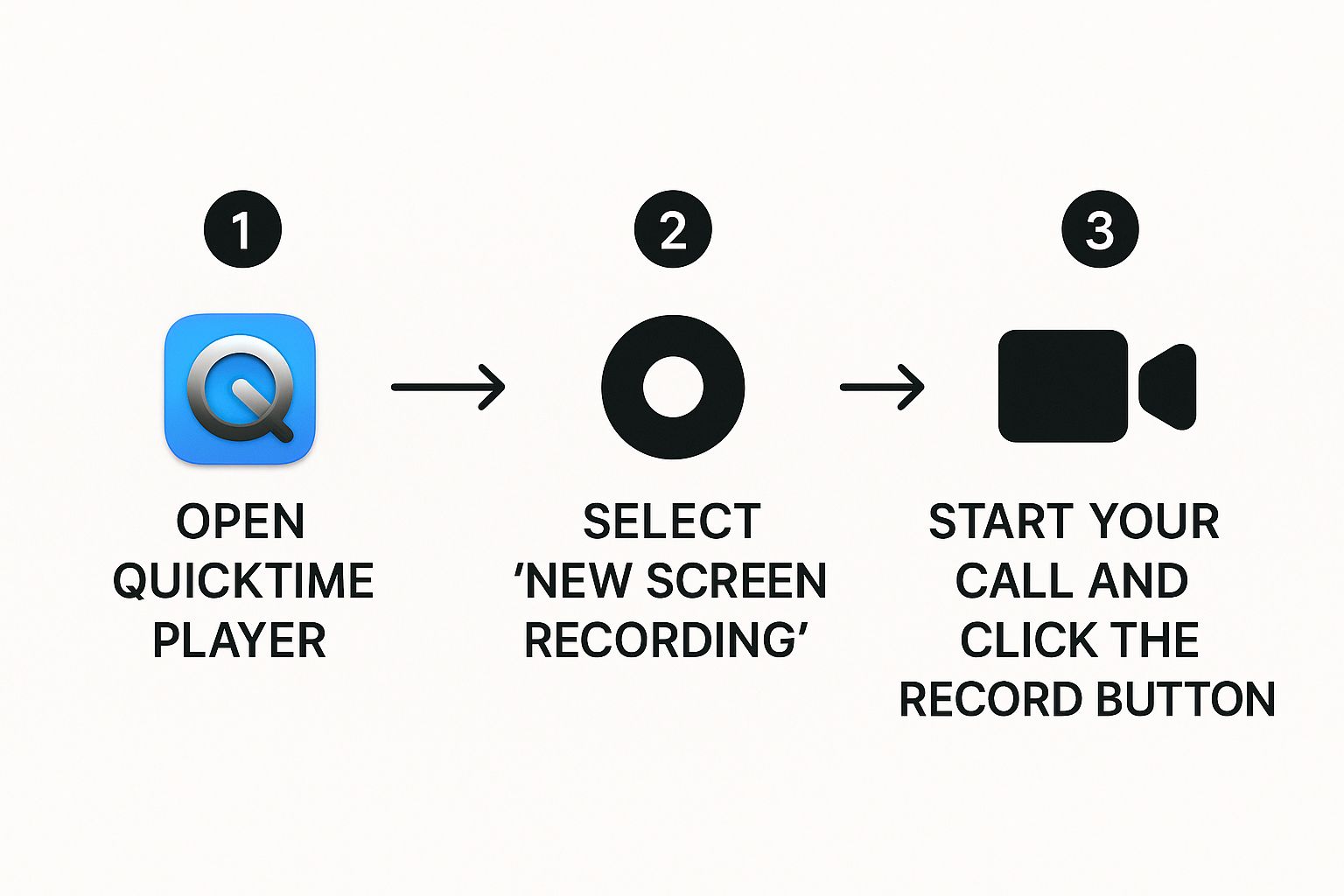
First thing's first: you need to decide what to capture. You can grab your entire screen, a specific app window (like your video call), or my personal favorite, a custom-sized region. This flexibility is a game-changer. I often just drag a box perfectly around the video participants, which keeps my messy desktop icons and those random pop-up notifications out of the final cut.
Next up is audio, a step you absolutely don't want to gloss over. Screendesk lets you select both your microphone and your computer's system audio at the same time.
- Microphone Audio: This is what captures your voice. Pro tip: an external USB mic will sound worlds better than the one built into your laptop.
- System Audio: This grabs all the sound coming from your computer, which means you'll capture what everyone else on the call is saying.
By selecting both, you get a professionally balanced recording where you can clearly hear what you said and what they said.
Capturing the Call with Confidence
With your screen and audio all set, you're good to go. Hop into your video call, whether it's on Microsoft Teams, a Slack Huddle, or some other web-based tool. As soon as the important part of the conversation begins, just hit the record button in Screendesk.
The real magic of a dedicated tool like Screendesk is its universal compatibility. It just works. You get the same high-quality recording workflow whether your client insists on Zoom, your team uses Teams, or you're on a niche browser-based platform.
While it’s recording, Screendesk just hums along quietly in the background. You can stay completely focused on the conversation, knowing everything is being captured in high fidelity. When the call wraps up, one click stops the recording, and the video file saves instantly to your computer.
For those on a Mac, you'll find the basic idea is similar to the native screen recording tools, but Screendesk adds a much-needed layer of control and polish. If you want to explore more options, our complete guide on how to record a video call covers a ton of different platforms and methods.
Sometimes, the easiest solution is the one right in front of you. When it comes to recording a video call, platforms like Zoom and Google Meet have their own built-in tools that get the job done with a single click.
It’s incredibly convenient, I'll give them that. But that convenience can come with some trade-offs. These native recorders are great for quick, informal captures, but if the recording is for something critical, you need to know their limitations first.
Recording Directly in Zoom
Zoom's recording feature is probably the one most people are familiar with. If you're hosting the meeting or the host gives you the green light, you'll see that big "Record" button at the bottom of your screen. They really made it hard to miss.
Clicking it usually presents you with two paths, depending on your plan:
- Record to the Cloud: This is a perk for paid accounts. The recording goes straight to your Zoom cloud storage, which makes sharing as simple as sending a link. You even get an automatic transcript, which is a huge time-saver.
- Record on this Computer: This is the default for free users. Once the meeting wraps up, Zoom processes the video and drops the file right onto your local hard drive.
The big catch with Zoom? It’s all about transparency. The moment you hit record, a "Recording" indicator pops up for everyone, and an audio announcement often plays. This is fantastic for getting consent but means there’s zero chance for a discreet recording.
For free users, the biggest hurdle is being limited to local recordings. You're on the hook for managing the file, making sure you have enough storage space, and figuring out how to share that potentially massive video file. Cloud storage and transcription are game-changers, but they’re kept behind the paywall.
Capturing Calls in Google Meet
Google Meet has a native recorder too, but it’s a bit more exclusive. You’ll only find this feature if you’re on a specific Google Workspace plan, like Business Standard, Business Plus, or one of the higher-tier education plans. If you're just using a standard, free Gmail account, the record button simply won't be there.
For those who have access, kicking off a recording is a piece of cake.
During the meeting, just find the three-dot menu for "More options" and select "Record meeting." A quick consent notification will appear to make sure everyone is on board.
Just like Zoom, Google Meet lets everyone know they're being recorded. Once the call is over, the magic happens automatically: the video file lands in a "Meet Recordings" folder in the host’s Google Drive, and the organizer gets an email with the link. It doesn't get much smoother than that. For a deeper dive into the features across different platforms, our complete guide on video call recording covers even more ground.
The primary obstacle here is pretty clear: the price of admission. For a lot of freelancers, small teams, or solo entrepreneurs, upgrading to a qualifying Google Workspace plan just for the recording feature isn't practical, which is why many turn to more specialized third-party tools.
Navigating the Legal and Ethical Rules of Recording
Before you hit that record button, it's critical to understand the rules of the road. This isn't just about covering your bases legally; it's about building trust and respecting everyone's privacy.
The most important rule is surprisingly simple: get consent. Never assume it's okay to record someone without their explicit permission. The best way to handle this is to announce you're recording right at the start of the call. This gives everyone a clear chance to agree or voice any concerns.
One-Party vs. Two-Party Consent
The legal side of recording conversations can get tricky, especially in the U.S. where laws differ by state. Generally, they fall into two camps: "one-party" or "two-party" (often called "all-party") consent.
- One-Party Consent: In these states, you only need one person in the conversation to consent to the recording. Since you're on the call, your consent is usually enough.
- Two-Party Consent: This is stricter. You need permission from everyone involved in the conversation before you can legally record.
Since video calls often connect people from different cities or even countries, you might not know which laws apply. The safest, simplest approach is to always act as if you're in a two-party consent state. Just ask everyone for permission.
While we aren't lawyers and this isn't legal advice, getting clear verbal consent at the beginning of a recorded call is the gold standard. A simple, "Hey everyone, just a heads-up, I'm going to record this call for our records. Is that okay with everyone?" is all you need. It's transparent and keeps you on the right side of the rules.
This practice is becoming standard, particularly for customer-facing teams. The global call center market is projected to reach nearly $500 billion by 2027, a boom driven by technologies that use recordings for quality assurance and training. You can see more stats on call center trends at research.aimultiple.com.
Beyond the Law: Ethical Best Practices
Being ethical means going a step beyond just what the law requires. It’s about being upfront and clear about why you're recording and what you plan to do with the video afterward.
Before you capture a video call, make sure participants know:
- Why you're recording (e.g., for training purposes, to create meeting notes, or for project documentation).
- Who will be able to watch the recording.
- How long you plan on keeping the file.
This kind of transparency prevents any misunderstandings and builds a solid foundation of trust with your team, partners, and customers. When you treat recordings with respect, they become a valuable asset instead of a potential liability.
Common Questions About Recording Video Calls
When you first decide to record a video call, a few questions are bound to pop up. It's totally normal. You might wonder about the technical side of things, or maybe you're thinking about privacy and legal stuff. Getting these things straight from the start makes the whole process feel much less intimidating.
We've pulled together the most common questions we hear, with straightforward answers to clear up any confusion. Think of this as your go-to reference for handling those little uncertainties so you can hit "record" with confidence.
Can I Record a Video Call Without Anyone Knowing?
While some screen recording tools might technically let you do this, it’s a bad idea on every level. In many places, recording someone without their permission is illegal due to "two-party" or "all-party" consent laws.
Beyond the legal risks, it’s just not good practice. Secretly recording a conversation shatters trust. Always, always let people know you're recording. Most native recorders in platforms like Zoom or Google Meet help you out by automatically notifying all participants when a recording starts.
The golden rule is simple: always get consent. A quick, "Hey everyone, is it okay if I record this call?" is all you need to do the right thing.
What Is the Best Video Format for a Recorded Call?
Hands down, MP4 is the best format for your video call recordings. It gives you that sweet spot of great video quality without creating a massive file that’s a pain to store and share.
The biggest win for MP4 is its universal compatibility. You can be confident that an MP4 file will play on just about any device—Windows, Mac, iPhone, Android—without needing any special software. It's the reason why modern tools like Screendesk and others default to MP4. It just works.
How Do I Get Clear Audio on My Recordings?
Good audio can make or break your recording. If people can't hear what's being said, the video is pretty much useless. The single best thing you can do for your audio quality is to use an external microphone. You don't need a fancy studio setup; a simple USB mic or even the microphone on a decent headset is a huge step up from your laptop's built-in mic.
Your surroundings matter, too. Find a quiet room to cut down on background noise. Echoes from an empty room, the clatter of a keyboard, or traffic from an open window can be incredibly distracting on a recording.
Finally, always do a quick sound-check before you get into the meat of the call. It only takes a second.
- Double-check that your recording software is set to use your preferred microphone.
- Ask the other participants, "How am I sounding? Is my audio clear?"
- If you have a moment, do a quick 5-second test recording and play it back to yourself.
Taking a minute to do this can save you from the headache of discovering an hour-long recording is completely inaudible.
Ready to capture crystal-clear recordings of your support calls with just one click? Screendesk integrates directly into your helpdesk, making it easy to record, share, and analyze every interaction. Learn more and start your free trial today!
