


At its core, a browser screen recorder is a tool, usually a simple browser extension, that lets you record what's happening on your screen. The real magic is that it skips the clunky software downloads. You can create a quick video tutorial or report a bug with just a couple of clicks, right from your browser.
Why Screen Recording Is a Customer Support Game Changer
Let's be honest, we've all been stuck in those endless email chains trying to explain a simple problem. Text-based instructions often create more confusion than they solve. This is where a browser screen recorder completely changes the dynamic. Instead of trying to describe a fix, you can simply show it.
Think about it: you can turn a customer's vague bug report into a crystal-clear video for your developers in less than a minute. Or, you can walk a user through a new feature visually, saving you from writing a ten-step novel they might not even read. It's a fundamental shift in how support gets done.
Here’s a peek at the Screendesk interface, which is built to plug right into the tools your support team already uses.
As you can see, the layout is clean and intuitive. An agent can start recording, find their videos, and share them without ever having to jump out of their main helpdesk software.
Moving Beyond Text-Based Support
The biggest win here is clarity. Written instructions are so easy to misinterpret, which just leads to more tickets and frustrated customers. A video, on the other hand, leaves very little room for doubt. This isn't just about closing tickets faster; it’s about providing genuinely helpful, empathetic support that makes customers want to stick around.
A few key advantages really stand out:
- Slash Resolution Times: Agents can show the exact steps to solve a problem, dramatically cutting down on the back-and-forth.
- Boost Customer Understanding: Visuals make complex steps easy to follow, so customers get it right the first time.
- Make Bug Reports Actionable: Developers get a clear video of the problem happening in real-time, including what the user did. This makes squashing bugs so much faster.
The switch to visual communication isn't just a fleeting trend—it's a smarter way to work. When you show instead of tell, you deliver resolutions with a level of precision and personal touch that text just can't compete with.
Text Support vs Browser Screen Recording
Sometimes, seeing the difference side-by-side makes it all click. Here's a quick comparison of how these two approaches stack up against common support hurdles.
| Support Challenge | Text-Based Resolution | Browser Screen Recorder Resolution |
|---|---|---|
| Complex bug report | Long email with vague descriptions and static screenshots. | A short video showing the exact steps to reproduce the bug. |
| Feature walkthrough | A lengthy, numbered list of instructions. | A guided tour where the user can see every click and menu. |
| "Where do I find…?" | "Go to Settings > Account > Billing…" | A quick recording pointing directly to the button on the screen. |
| Troubleshooting error | Back-and-forth questions trying to diagnose the issue. | A video from the customer showing the error as it happens. |
As you can see, video consistently provides a faster, clearer, and more direct path to a solution for both the agent and the customer.
And the results aren't just anecdotal. The impact is real and measurable. One study highlighted in an analysis of AI-powered screen recorders found that a company saw a 25% increase in sales and a 30% reduction in customer support tickets after adopting the technology. If you're curious, you can dig into these industry-specific AI screen recorder findings on superagi.com. The data clearly shows that these aren't just support tools; they're powerful business optimizers.
Setting Up Your Browser Screen Recorder in Minutes
One of the best things about a modern browser screen recorder is how fast you can get going. Forget the days of clunky software installations and confusing setup wizards. You can be up and running, creating your first recording, in less time than it takes to make a cup of coffee.
The whole point is simplicity. It’s designed so that even the least tech-savvy person on your team can start making helpful videos right away. It all starts in your browser's extension store, a familiar spot for adding new tools.
This is what you'll see in the Chrome Web Store. Finding and adding the Screendesk extension is just a single click.
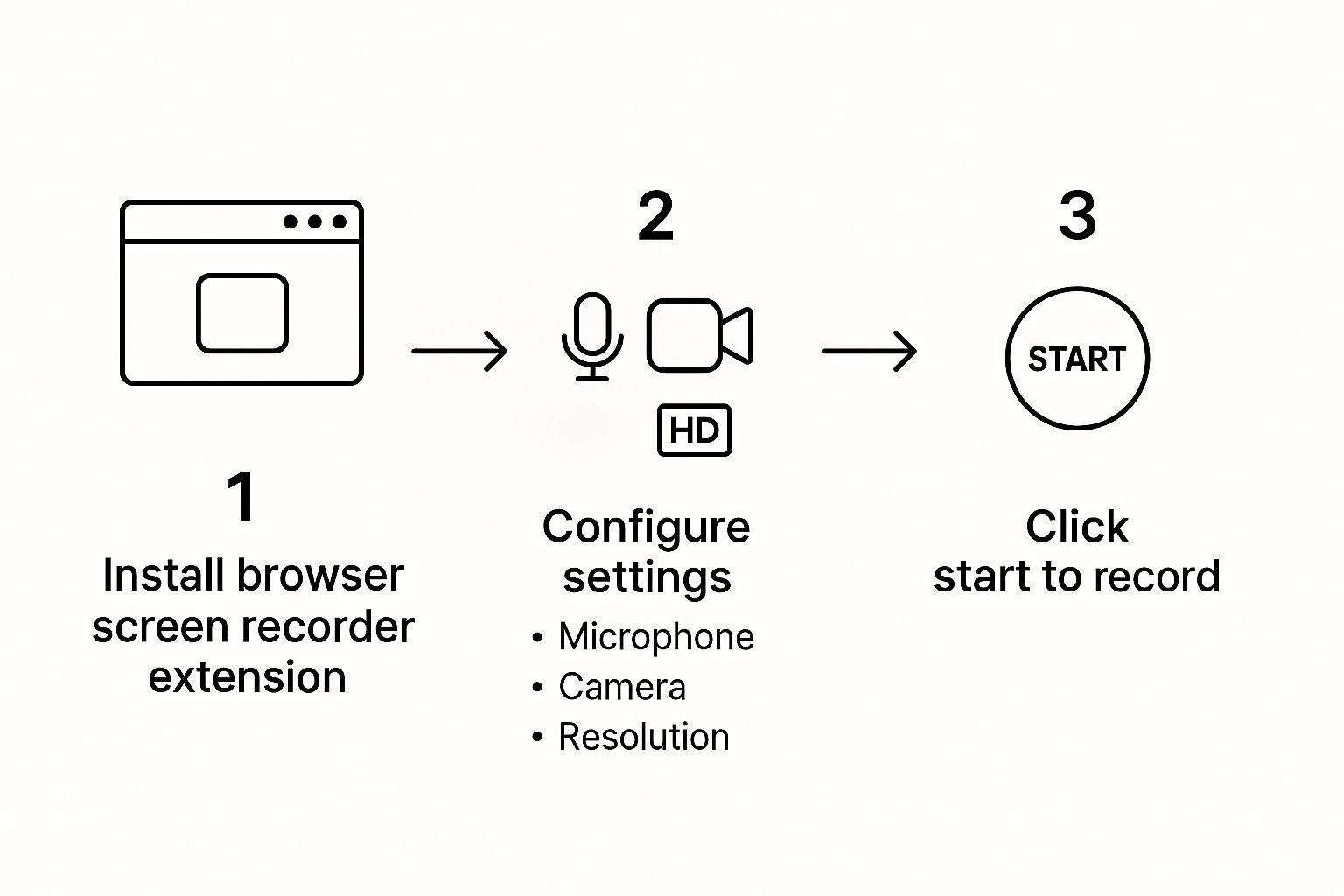
That simple, one-step process is a huge plus. It means no waiting around for IT help or going through long approval processes. Your team can just grab it and go.
Your First Recording in Three Quick Steps
Once you've added the extension, your browser will ask for a few permissions. This is a standard but important step that lets the recorder access your microphone and camera. Granting these allows you to capture clear audio and add a personal touch with a webcam video.
A support tool has to be easy to set up. Period. If your team has to fight with the software just to get it running, they simply won't use it. The goal is to make recording a quick video feel as natural as firing off an email.
After giving the green light on permissions, you’ll see a clean, simple interface. From here, you just choose what you want to capture:
- Your entire screen
- A specific application window
- Just a single browser tab
This flexibility is great. You can show a customer a full workflow across different apps or zero in on a single setting within your product.
For a more detailed look at the technical ins and outs, our complete guide on how to record on-screen video with the best tools is a great resource.
But with Screendesk, you’re basically there. Just pick your source, hit record, and you’re ready to start showing your customers the solution, not just telling them.
Creating Support Videos That Actually Help

Anyone can hit the record button. The real trick is creating a video that actually solves a customer’s problem without causing more confusion. You’re not just making a video; you're crafting a clear, quick solution that saves everyone a headache.
Before you even think about recording, take a moment to prep your screen. Close out of those extra tabs, silence your notifications, and hide anything that isn't essential. A clean workspace looks far more professional and keeps the focus entirely on the fix, not your Slack DMs.
Framing the Perfect Solution
With a clean screen, it's time to think about who you're recording for. I've found that support videos generally fall into two categories, and knowing the difference is what makes them truly effective.
- Bug Replication for Devs: When you’re showing a bug to your technical team, you need to be meticulous. Record every single click, scroll, and keystroke that triggers the issue. You’re essentially giving them a perfect blueprint to replicate the problem on their end.
- Walkthroughs for Customers: For customer-facing videos, clarity is everything. Slow down your mouse movements. Speak calmly and explain each step as if you were sitting right next to them. Think guide, not demo.
Tailoring your approach like this ensures that every video made with a browser screen recorder lands perfectly, whether it's for an internal ticket or a customer reply. If you want to dive deeper, we have a whole guide on how to create video tutorials that actually help.
A quick personal tip: Your tone of voice can make or break a support video. A patient, friendly voice can instantly de-escalate a tense situation and build a surprising amount of trust.
Guiding Their Eyes with Annotations
The best screen recorders have built-in annotation tools, and they’re your secret weapon for creating ultra-clear videos. Don't just show your screen—actively guide the viewer's attention.
Draw a quick circle around the exact button they need to click. Use an arrow to point to a specific field they missed. These simple visual cues are incredibly powerful for preventing any guesswork and making sure your instructions are followed to a T.
It’s no surprise that tools like these are in high demand. The screen recorder software market was valued at around USD 1.5 billion in 2024 and is projected to more than double to USD 3.2 billion by 2033. This boom is driven by the massive shift toward remote work and digital-first communication. You can explore more on the screen recorder market growth at verifiedmarketreports.com.
Using Advanced Features to Boost Team Efficiency
Once your team has the basics down, you can start tapping into the features that really make a difference. These advanced tools are what separate a simple screen recorder from a full-blown support system. It’s all about moving past one-off video replies and building a smarter, more efficient way to help customers.
A perfect example is direct integration with your helpdesk. Instead of juggling tabs, agents using a tool like Screendesk can drop a video right into a Zendesk ticket without ever leaving their workspace. This small change makes a huge impact on response times and gives the customer a much smoother experience.
Building a Scalable Video Library
Think about how many times your team answers the same question. Instead of re-recording the same "how to reset your password" video every week, you can create a shared team library of go-to recordings.
When an agent gets a common query, they just grab the right pre-made video and send it off. This simple shift from individual effort to a shared resource is a game-changer.
Here’s why this works so well:
- It cuts down on repetitive tasks. Your agents can stop re-explaining the same simple steps and focus on the tough problems that actually need their expertise.
- It keeps your messaging consistent. Every customer gets the same clear, approved explanation for common issues.
- It helps new hires get up to speed faster. They can dip into the library to see exactly how to solve common tickets.
On top of that, these video tools are fantastic for internal use. They can really improve overall team communication and make collaboration a whole lot easier.
Your video library becomes a living knowledge base. Every recording adds to your team’s collective intelligence, making everyone more effective over time. It's a system that gets smarter with every ticket you solve.
Unlocking Content with AI Transcription
Another incredibly useful feature is AI-powered transcription. Tools like Screendesk can automatically generate a written transcript of everything said in a screen recording.
Suddenly, your entire video library is completely searchable. An agent can type a keyword like "billing issue," and the system will pull up every relevant video—even if that phrase was only spoken aloud and isn't in the video title.
This makes finding the right information almost instant. As the demand for these tools grows, AI features are quickly becoming standard. In fact, forecasts show the screen recording market expanding from around USD 2 billion in 2025 to a projected USD 6 billion by 2033, largely because of powerful additions like these. You can dig into more of these market growth projections and trends on datainsightsmarket.com.
Weaving Video Into Your Daily Support Workflow
Getting a new tool is easy. Making it second nature for your team? That’s the real challenge. To truly make a browser screen recorder a go-to in your support operations, you need a simple playbook everyone can get behind.
Start with a clear, easy-to-remember rule of thumb. For example, if a customer's question needs more than three screenshots or has a checklist with five or more steps, it’s time to hit record. This creates a mental trigger for agents, helping them know exactly when a video will be more helpful than text.
Creating Consistency and Building a Video Library
Once your team starts recording, you'll want to make sure the customer experience is consistent. Aim for a friendly and professional tone, and keep the videos short and to the point—I find that under 90 seconds is the sweet spot. This ensures every customer gets the same high-quality help, no matter who they talk to.
The next big win comes from creating a library of "evergreen" videos for common issues.
- Find Your Top 10: Start by identifying the ten questions that pop up in your support queue most often.
- Record a Perfect Answer: Make a clear, step-by-step video for each one.
- Share and Save Time: Store these recordings in a shared team folder. Now, anyone can grab the right video in seconds, saving a massive amount of time.
By building a video knowledge base, you’re doing more than just closing tickets faster. You're creating a powerful, reusable resource that helps your whole team provide better support with less burnout.
If you want to go deeper, our guide on creating a video customer support success blueprint is the perfect roadmap for making video a central part of how you help customers.
Common Questions We Hear About Browser Screen Recorders
Even the most straightforward tools can bring up a few questions. Let's tackle some of the common ones we hear from support teams so you can hit the ground running with confidence.
Is It Safe to Share Customer Information This Way?
This is usually the first question people ask, and for good reason. Security is everything in customer support. Reputable tools like Screendesk are built from the ground up with security in mind, giving you private, secure links to share videos instead of just posting them publicly.
As a rule of thumb, never record sensitive personal data like credit card numbers or passwords. Always make sure your screen recorder provider is transparent about their data privacy and security practices before you commit.
Do I Need to Be a Tech Whiz to Use This?
Honestly, not at all. The real magic of a modern browser screen recorder is how simple it is. Most of them are just browser extensions you can install and start using in a couple of clicks.
The whole point is to make it intuitive. Anyone on your team should be able to create, mark up, and share a helpful video without ever having touched a video editor before.
My take? If a tool feels complicated, your team just won't use it. It needs to feel as easy and second-nature as firing off a quick email.
Can We Use This for Internal Team Training, Too?
Absolutely! While it's a game-changer for customer support, it's also incredibly handy for internal communication. Think about it:
- Quickly create training videos for new software rollouts.
- Document a process for a new team member.
- Give clear visual feedback on a project to a colleague.
It's a great way to share information visually without having to book yet another meeting.
Ready to see how video can change your support workflow? See how Screendesk makes it simple to show, not just tell. Get started with Screendesk today.
