


Knowing how to record on screen video isn't just a tech skill anymore—it’s a powerful way to get your point across. When you need to demonstrate software, show a bug in action, or walk someone through a process, showing is always better than telling. It's the fastest way to make things crystal clear.
Why Screen Recording Is a Modern Superpower
Think of screen recording as your communication secret weapon. It cuts through the confusion that text and static images can create.
For example, ever tried to describe a weird software glitch to your IT team over email? It's a pain. Instead, you can just record your screen for 30 seconds, showing exactly what you did to trigger the bug. This simple act saves a ton of back-and-forth and gets the problem solved way faster.
The same goes for training. A quick video showing how to use a new tool is so much more effective than a long, boring PDF. People can watch it on their own time, rewind, and really absorb the information without feeling rushed.
In today's world of remote and hybrid teams, screen recordings are non-negotiable. They let you share complex ideas without needing to schedule yet another meeting, which respects everyone's calendar.
And it's not just a feeling; the numbers back it up. The global screen recording software market was valued at around USD 300 million back in 2021. It's expected to rocket to nearly USD 1 billion by 2030. If you're curious about the data, you can dig into the market analysis from Verified Market Reports.
Bottom line? Getting good at screen recording saves you—and everyone else—a massive amount of time and makes sure your message actually lands.
Picking the Right Tool for Your Screen Recordings
Before you hit record, the most critical decision you'll make is choosing your software. It's tempting to just grab the first tool you see, but trust me, taking a moment to match the tool to your task will save you a ton of headaches later. What you need for a quick bug report is worlds apart from the software required for a polished training series.
Your options really fall into a few main categories. Lightweight browser extensions are fantastic for quick, no-fuss captures you need to share instantly. Then you have the more robust desktop apps, which are packed with features like detailed editing, custom branding, and high-quality output—perfect for when you need to create something more professional.
Finding the Best Fit for Your Project
There's also a third way: cloud-based platforms like Screendesk. These tools blend the simplicity of a browser extension with powerful collaborative features built for teams. This is a game-changer for customer support, where you can attach a recording directly to a ticket or share it in your help center in seconds. If you’re an agency, checking out roundups of the best meeting recording software for agencies can also point you toward some great options.
This image gives you a peek at how you can tweak settings like resolution and frame rate in a modern screen recorder.
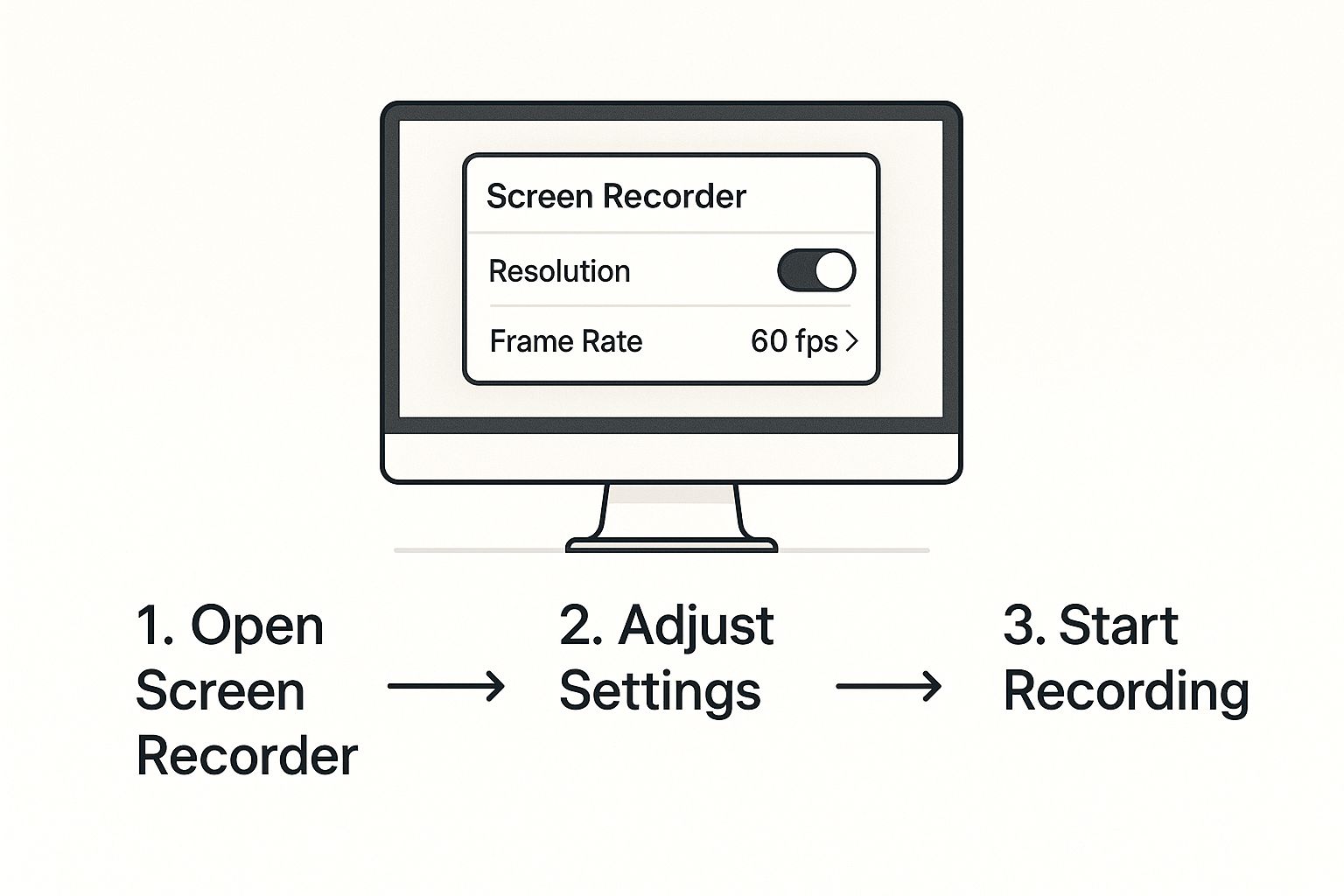
It really highlights how much control you have over the technical quality of your video before you even start recording.
Matching Your Project to a Tool Type
The demand for screen capture tools has absolutely exploded. The market was valued at a massive USD 9.58 billion in 2024 and is projected to climb to USD 18.25 billion by 2029. That growth tells you just how essential these tools have become for businesses everywhere.
To help you decide, here's a quick breakdown of which tool type works best for different situations.
Screen Recorder Tool Comparison
Choosing a screen recorder really depends on what you're trying to accomplish. This table breaks down the main types to help you find the perfect fit for your specific needs, whether it's a quick share or a polished, professional video.
| Tool Type | Best For | Key Features | Example Use Case |
|---|---|---|---|
| Browser Extension | Quick captures & simple shares | Lightweight, easy access, no install | Reporting a visual bug to your IT team. |
| Desktop App | Polished & professional videos | Advanced editing, high resolution | Creating a detailed product tutorial for YouTube. |
| Cloud Platform | Team collaboration & support | Integrated workflows, instant sharing | A support agent showing a customer how to fix an issue. |
Ultimately, the goal is to find a tool that feels like a natural extension of your workflow, not another hurdle to overcome.
The best tool isn't the one with the most features; it's the one that makes your specific task easier. For many teams, an integrated solution that removes friction is more valuable than a complex, standalone editor.
If you want to get into the nitty-gritty of specific software, take a look at our complete screen recording software comparison guide. It’s packed with detailed reviews to help you make a confident choice.
Setting the Stage for a Perfect Recording
A little prep work before you hit record can make a world of difference. Seriously. Taking a few minutes to get your setup right can save you a ton of editing headaches later and makes for a much cleaner, more professional final product. It's less about being a perfectionist and more about respecting your viewer's time.
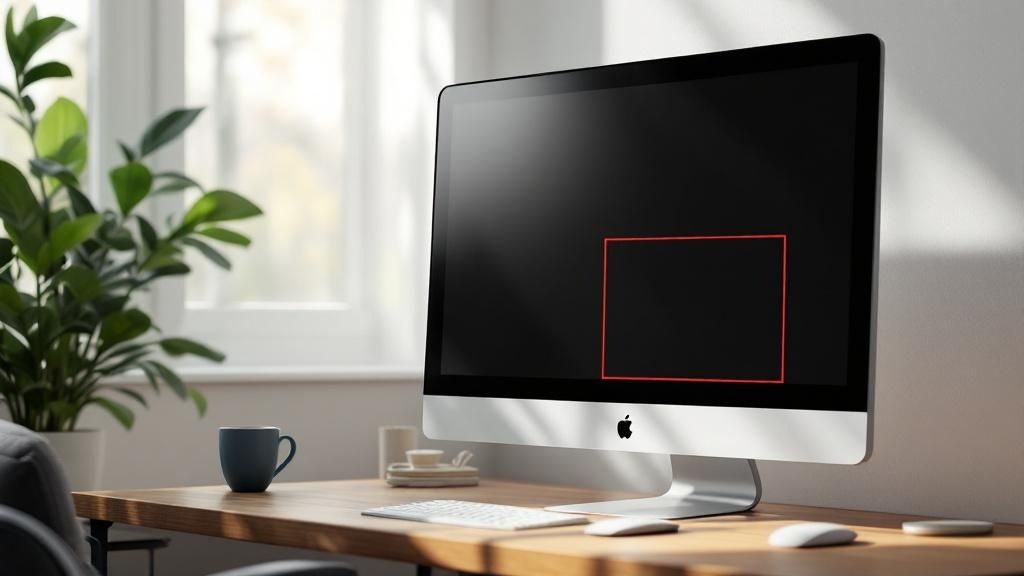
First things first, let's tidy up your digital space. A desktop cluttered with random files or a browser with twenty tabs open is a huge distraction for your audience. Take a moment to close any apps and tabs you don't absolutely need for the recording. If you do this often, a pro tip is to create a separate, clean user profile on your computer just for recording sessions.
Next up: silence the notifications. There’s nothing that kills the flow of a great take faster than a random "ping!" from a new email or a chat message popping up on screen. Jump into your system settings and flip on "Do Not Disturb" or "Focus Mode." It’s a simple click that keeps your video smooth and your viewers focused on what matters.
Your Pre-Flight Checklist
With your digital desktop clean, it's time to check your physical gear. These are the essentials I never skip to ensure a quality recording from the get-go.
- Microphone Check: Bad audio is a deal-breaker. Always do a quick test recording to listen for your volume and clarity. You want to make sure there's no weird background hum and that you're not too close (popping) or too far away (echoing).
- Webcam Positioning: If you’re going to be on camera, try to position it at eye level. This feels much more natural and engaging for the person watching. Also, give your lighting a quick check to make sure your face isn't covered in shadows.
- A Quick Outline: You don't need to write a word-for-word script, but having a few bullet points jotted down is a lifesaver. It keeps you from rambling and ensures you hit all your key points without getting sidetracked.
A great recording is never an accident. It's the direct result of a few small, intentional steps you take beforehand. I've found that spending just five minutes on prep can easily save me an hour of painful editing later.
Recording Your Screen Like a Pro
Alright, this is where the magic happens. Let's get down to the nuts and bolts of actually recording your screen. It might seem a little daunting at first, but I promise, once you get the hang of it, it's surprisingly straightforward.
First things first, you need to decide what your audience will see. You rarely need to share your entire digital life. Good recording software gives you options, and knowing which one to pick is key.
- Full Screen: This is your go-to when you need to show a workflow that jumps between different apps or windows.
- Specific Window: I use this one all the time. It’s perfect for focusing on a single piece of software, keeping your cluttered desktop and personal notifications out of the shot.
- Custom Region: This is a lifesaver. You just draw a box around the exact part of the screen you want to feature. It's brilliant for zeroing in on a specific detail and hiding everything else.
Getting Your Audio Right and Nailing the Take
Once you've framed your shot, it's time to think about sound. In your recording settings, make sure your microphone is selected as the audio source. If you're demonstrating something that has its own sounds—like system alerts or a video clip—you'll also want to enable system audio. Getting both sources is crucial for a complete tutorial.
I never, ever skip a quick 10-second test recording. Seriously, it's a non-negotiable step that has saved me countless headaches. Just hit record, say a quick "testing, one, two, three," and play it back. This simple check confirms your voice is coming through clearly and the system audio is working as expected.
So, what if you mess up a sentence or click the wrong thing? Don't hit the stop button! The best piece of advice I ever got was to just pause. Take a second, collect yourself, and then continue right where you left off. You can easily snip out the mistake later. This simple trick takes all the pressure off and helps you create a much more natural-sounding recording.
For a visual guide on understanding screen capture techniques, you can see how different capture types work. If you want to dive even deeper, our complete guide on how to https://blog.screendesk.io/record-whats-on-your-screen/ is loaded with more pro tips to make the process feel less like a task and more like a conversation.
Polishing and Sharing Your Screendesk Recording
So, you've hit the stop button on your recording. Great! But that raw footage is just the starting point. Now, we'll turn it into a crisp, professional video that actually solves problems, and you won't need a degree in video editing to do it.
Honestly, some of the most powerful edits are the simplest. We've all recorded videos that start with a few seconds of awkward silence or end with us fumbling to find the stop button. Trimming that off instantly makes your video feel more polished. With a tool like Screendesk, you can do this right in your browser—no downloads or complicated software needed.
I also find that a few quick annotations can make a world of difference. Adding an arrow or a quick text box to highlight a specific button or menu item guides your viewer's attention right where it needs to be. This is a game-changer for things like bug reports or customer tutorials where you can't afford any confusion.
Put Your Recording to Work
Once your video looks good, it's time to make it useful. Instead of just emailing a clunky video file, Screendesk lets you plug your recordings directly into your daily workflow. This is where a simple screen recording becomes a real problem-solving asset.
- Create Support Tickets: You can instantly attach your recording to a new support ticket. This gives your support team the full visual story, helping them understand and resolve the issue on the first go.
- Enhance Help Articles: Why tell when you can show? Embed your video tutorials directly into your knowledge base or FAQ pages. This empowers customers to find their own answers, which can seriously cut down on your support tickets.
- Share with Your Team: Need a colleague's opinion? Just generate a shareable link and drop it in your team chat for instant feedback.
The real goal here isn't just to record a video. It's to make that video an active part of the solution. By integrating it into your helpdesk, you bridge the gap between a user identifying a problem and your team providing a fix.
This seamless, integrated approach is exactly why cloud-based recording tools are taking over. The market for this kind of flexible software is actually expected to triple by 2033. This same "record and integrate" mindset is just as effective when you need to record a video call for internal training or documentation.
Common Questions About Screen Recording
Once you get the basics down, you'll inevitably run into a few specific questions. It happens to everyone. Let's walk through some of the most common ones I hear so you can record with confidence.
A huge one is file size. It's easy to end up with a massive video file, especially when recording your full screen in high quality. These files are a pain to email or upload. An easy fix is to record at a lower resolution, like 720p instead of 1080p. You can also drop the frame rate if you're not recording something that needs buttery-smooth motion.
People also get stuck on recording audio from both their computer and their microphone at the same time. Good news: you absolutely can. Most screen recorders have separate settings for system audio (the sounds from your computer) and microphone input. Just make sure both are toggled on before you hit record. A quick test recording never hurts.
Can I Record a Presentation with My Voiceover?
Yes, and this is probably one of the most powerful ways to use screen recording. Whether you're using Google Slides or PowerPoint, the process is simple: put your deck into presentation mode, fire up your screen recorder, and start talking.
My best advice here is to have a script or at least some bullet points handy. It really helps you stay on track and avoid those long, awkward pauses.
Pro tip: When recording a presentation, I always choose to record a specific window instead of my entire screen. This is a lifesaver because it hides any unexpected pop-up notifications or desktop clutter from showing up in your final video.
A lot of folks also ask about the legality of screen recording. It’s a valid concern. Recording your own original work is perfectly fine, but you need to be cautious with copyrighted material. Think movies, music, or someone else's video content. When in doubt, always get permission before recording anything you didn't create yourself.
Finally, let's talk about video calls. Can you record them? Technically, yes. But ethically and often legally, getting consent is essential. You must tell everyone on the call that you are recording before you start. Platforms like Zoom or Webex have built-in recorders that automatically notify all participants, which is by far the safest way to go.
Ready to stop troubleshooting and start creating clear, actionable videos? Screendesk integrates screen recording directly into your helpdesk, making it effortless to show customers exactly how to solve their problems. Start resolving issues faster today.
