


Ever tried to show a friend something on your phone? You just hold it up, and they can see exactly what you're seeing. Browser screen sharing is a lot like that, but for your computer screen—and you can do it with someone halfway around the world, instantly, without downloading a single thing.
What Is Browser Screen Sharing, Really?
At its heart, browser screen sharing lets you broadcast what's on your computer screen—whether it's the whole thing or just a single application window—directly through your web browser. This is a big departure from the old way of doing things.
Think about traditional tools like Zoom or Teams. They almost always require you to download and install a desktop application. Browser-based sharing skips all that. It works right inside the tools you already use every day, like Google Chrome, Safari, or Firefox.
That means no installs, no setup files, and no waiting around. You click a link, give your browser permission, and just like that, your screen is shared. It’s a completely smooth way to collaborate on a project, walk a customer through a problem, or give a presentation.
The Shift to In-Browser Tools
This technology has quickly become a go-to for modern communication, especially as more teams work remotely and customer support moves online. A big reason for this shift is the sheer dominance of a few key web browsers.
For instance, Google Chrome holds a staggering 64.86% of the global browser market as of March 2025. When a feature like screen sharing works seamlessly in Chrome, it's instantly available to the vast majority of people online. This massive user base makes browser-based solutions a reliable and smart bet for any business. You can dig deeper into how browsers shape our online experience by looking at these recent browser statistics.
The biggest win with browser screen sharing is its immediacy. It removes the download and installation roadblock, clearing the way for both the person sharing and the person watching. This is perfect for fast-moving support and sales situations where every second counts.
Key Benefits of Browser Screen Sharing at a Glance
The beauty of browser screen sharing is its simplicity, which brings a ton of practical advantages to the table for both your team and your customers. By knocking down technical hurdles, it makes communication flow more naturally and helps everyone get more done.
Here’s a quick look at the main perks.
| Benefit | Description |
|---|---|
| Instant Access | No downloads or installations are needed. Anyone can join a session with a single click, which cuts out setup headaches and gets things moving fast. |
| Improved Collaboration | Teams can easily review documents, look at code, or brainstorm designs in real-time, even if they're all using different computers or operating systems. |
| Faster Problem Solving | A support agent can see a customer's issue as it's happening, leading to a much faster diagnosis and fix. No more confusing email chains! |
| Enhanced Security | You grant permission for each session and can choose to share just one browser tab, which keeps the rest of your desktop and files completely private. |
Ultimately, these benefits lead to more efficient workflows, happier customers, and a more connected team, no matter where they're located.
How Does Browser Screen Sharing Actually Work?
Ever wondered what’s happening behind the scenes when you share your screen? It might feel like a bit of magic, but it’s actually a clever piece of technology that’s already built into the web browser you're using right now. This isn't some clunky, third-party plugin; it’s a native function that makes sharing your screen quick, secure, and incredibly simple.
At the heart of it all is an open-source framework called WebRTC, which stands for Web Real-Time Communication. Think of WebRTC as a universal translator and a high-speed courier service rolled into one, living right inside your browser. Its main job is to create a direct, private line between two browsers, letting them swap video, audio, and other data without any extra software.
When you kick off a screen share, you’re setting in motion a carefully managed sequence of events, all handled by WebRTC. The entire process is built for both speed and security, ensuring your data stays private while the connection remains smooth and responsive.
The Core Technology: WebRTC
WebRTC is the engine that powers almost all modern, in-browser communication. It does the heavy lifting: capturing your screen, compressing it into a quality video stream, and sending it across the internet to the other person in what feels like real-time.
This direct browser-to-browser link is what tech folks call a peer-to-peer (P2P) connection, and it’s the secret to making the experience feel so instant. Instead of sending your video on a long trip to a central server and back again (which adds delay), WebRTC creates a more direct path. This drastically cuts down on lag, making the whole interaction feel more natural.
The real beauty of WebRTC is how it creates these secure, low-latency connections on the fly. It's the reason you can jump into a screen share with just one click—the technology is already there, waiting for you in your browser.
The image below breaks down just how simple this powerful technology is from a user's point of view.
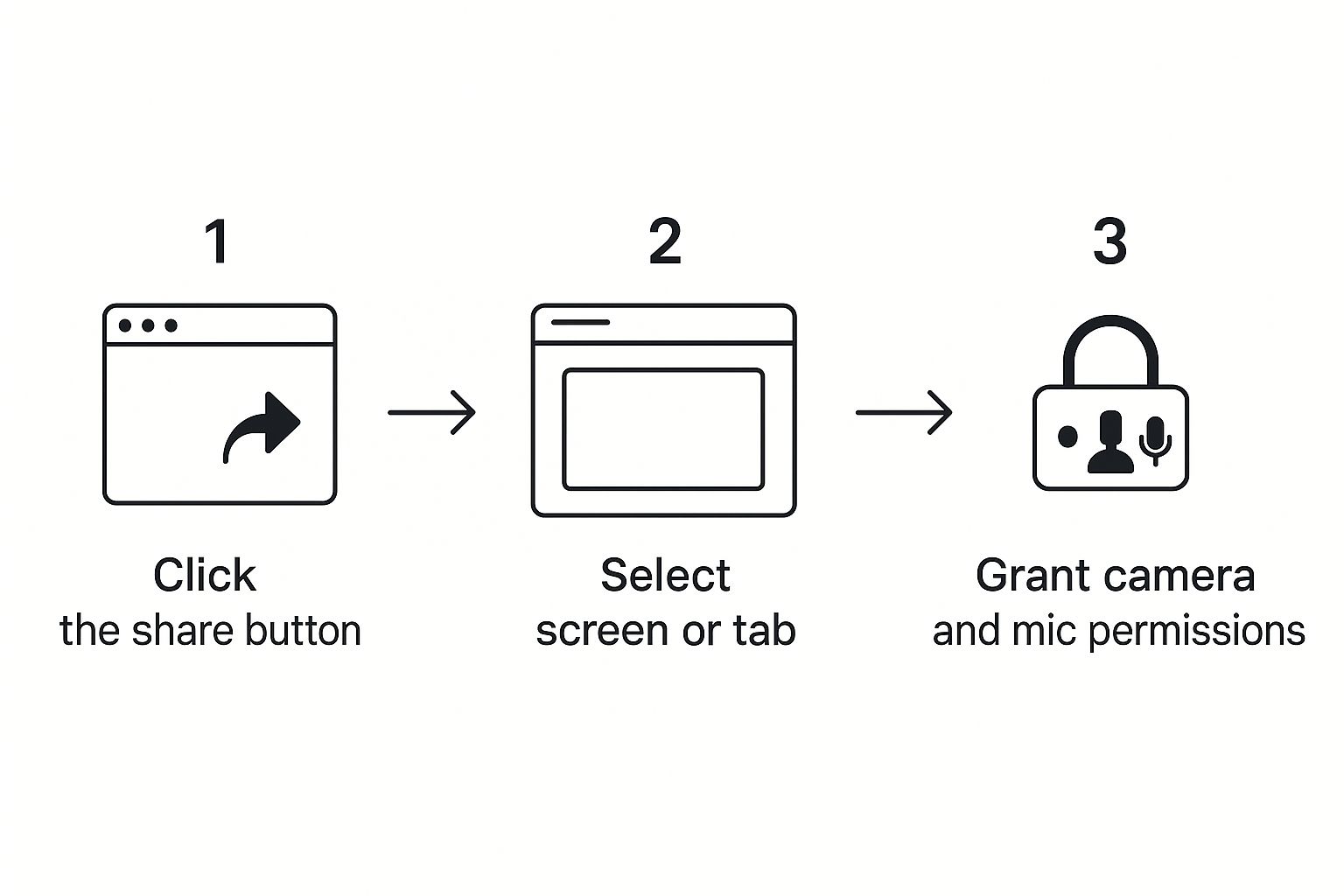
As you can see, starting a secure session is a straightforward three-step process. It’s designed to put control and privacy right where they belong: with you.
From Your Screen to Theirs, Step by Step
So, what exactly happens when you hit that "Share Screen" button? It feels like one simple action, but your browser is actually juggling a few key tasks behind the curtain to make it all happen securely.
Let's walk through it:
-
Step 1: Initiation and Permission
First, you click the share button. Your browser immediately pops up a permission request, asking you exactly what you want to share—your entire screen, a specific application, or just a single browser tab. This is a non-negotiable security step. Nothing gets shared without your explicit consent. -
Step 2: Capturing the Screen as a Video Stream
Once you give the green light, your browser starts capturing the area you selected. It treats this capture like a live video feed, encoding it frame by frame. This is why you can share dynamic content, like scrolling a website or even playing a video, and the other person sees it all happen smoothly. -
Step 3: Secure Transmission with WebRTC
WebRTC then takes the baton. It establishes a secure, encrypted channel to the other person's browser and sends the video stream of your screen through it. Everything is encrypted from end-to-end, which means only you and the person you're sharing with can see the content. -
Step 4: Receiving and Displaying the Feed
Finally, the recipient's browser gets the video stream, decodes it, and displays it inside their browser window. This entire cycle happens over and over, with barely any delay, creating a seamless shared experience.
For the best performance, especially when sharing high-resolution content, understanding your broadband speed needs can make a huge difference. A solid, stable internet connection keeps the video stream clear and prevents those frustrating freezes or pixelated screens that can kill the flow of a good support session.
Choosing Your Screen Sharing Method

The moment you click "share screen," your browser will pop up a small window asking for a big decision. You’re not just sharing your screen; you’re deciding exactly what part of your digital world the other person gets to see. Getting this choice right is key for both keeping your information private and making the session productive.
Think of it like this: each option is a different tool for a different job. You wouldn't use a sledgehammer to hang a picture frame, right? Same idea here. The three main choices you'll have are sharing your entire screen, just one application window, or a single browser tab.
The Full Picture: Sharing Your Entire Screen
Sharing your entire screen is the "show-all" option. It’s a complete mirror of your monitor. The other person sees everything you see—your desktop wallpaper, all your open apps, your taskbar, and yes, even those pop-up notifications you forgot to turn off.
This total transparency is a lifesaver for certain situations, especially IT support. If a tech agent needs to troubleshoot a complex problem, seeing how different programs are interacting or guiding you through system settings is nearly impossible without this complete view.
But that openness is also its biggest drawback. Any personal email previews, sensitive files sitting on your desktop, or chat messages that pop up are all fair game. It's best to use this only when you absolutely trust the person on the other end and have tidied up your digital desktop first.
A Focused View: Sharing an Application Window
A much safer middle ground is sharing a specific application window. This neat trick walls off the view to just one program you've selected. So, if you're demonstrating a piece of software or walking through a spreadsheet, that's all they'll see.
This is my go-to for most professional situations, like software demos or training calls. You can guide a customer through your product without them getting distracted by an incoming Slack message or an email from your boss. It keeps the conversation focused and professional.
Imagine a sales rep presenting a slideshow. They can share the PowerPoint window exclusively, keeping their CRM and private notes hidden in the background. The client sees a polished presentation, and the rep's workspace stays private.
Pro Tip: Sharing an application window is generally the safest and most professional default for most business interactions. It prevents accidental oversharing while giving the viewer all the context they need for that specific task.
Pinpoint Precision: Sharing a Browser Tab
For ultimate privacy and focus, you can share a single browser tab. This is the most granular option available, restricting the view to just one, specific tab inside your browser. Nothing else—not other tabs, not your bookmarks bar, not other applications—is visible.
This is perfect for working on a Google Doc together, going over a specific webpage with a colleague, or guiding a customer through your company’s website without them seeing the 27 other tabs you have open.
It's also worth remembering that the browser you use matters. As of June 2025, Google Chrome holds a massive 66.59% of the desktop browser market, with Safari trailing at 7.34%. Because Chrome is so dominant, screen sharing features built for it tend to be the most reliable and reach the widest audience. If you're curious, you can explore more about browser market dynamics and see how these numbers shift over time.
Powerful Ways to Use Browser Screen Sharing
It's one thing to understand the tech behind browser screen sharing, but its real value shines when you see what it can do in the real world. This simple tool is making a huge difference in all sorts of fields by smoothing out communication and cutting down on confusion. It’s not just a fancy feature—it’s a better way to solve problems, close deals, and build things together.
Let’s dive into a few situations where browser-based sharing really makes an impact, transforming tricky conversations into simple, visual walkthroughs. You'll see how just being able to see what your customer or teammate sees can change everything.
Transform Customer Support Sessions
Think about a typical support scenario. An agent, Sarah, is trying to help a frustrated user, Mark, who can't find a button on a software dashboard. Over chat, this is a recipe for a long, painful back-and-forth. Mark fumbles to describe his screen, and Sarah is left trying to guess what he's looking at.
Now, let's replay that with browser screen sharing. Sarah sends Mark a single link. He clicks it, gives his permission, and just like that, she’s seeing his browser tab.
In seconds, Sarah spots the problem. A caching issue means Mark is stuck on an old version of the interface. She walks him through clearing his cache, and the issue is fixed. Total time? Less than two minutes.
This is exactly why support teams love it. It gets rid of all the guesswork and dramatically cuts down how long it takes to fix things. Instead of trading confusing descriptions, agents see the problem with their own eyes, which means faster solutions and much happier customers.
Deliver Flawless Sales Demos
In sales, you rarely get a second chance to make a first impression. A sales rep, David, is getting ready to show off a new web-based analytics tool to a potential client. The old way involved asking the client to download a clunky meeting app, which often started the call with technical glitches and delays.
Today, David just uses browser screen sharing. He sends a simple meeting link, and the prospect joins instantly, right from their own browser. David then shares only the tab with his product dashboard.
The whole experience feels seamless and professional right from the start. Here’s the magic behind it:
- Zero Friction: The client doesn’t have to install a thing. That common point of frustration? Gone.
- Focused Pitch: By sharing only the product tab, David keeps the client from getting distracted by desktop notifications or his hundred other open tabs.
- Hands-On Engagement: He can even give the client remote control to click around in a safe demo environment, making the whole pitch feel more interactive and real.
This streamlined approach keeps the conversation focused on the product's value, not on wrestling with technology.
Power Up Remote Team Collaboration
When you're working remotely, it can be tough to collaborate visually on complex projects. Take Leo, a web developer, and Maria, a UI/UX designer, who are working on a new website feature. They need to go over code and design mockups together, in real-time.
With browser screen sharing, it’s almost like they’re sitting in the same room.
- Code Reviews: Leo shares his code editor. Maria can point to specific lines and suggest changes while seeing the code exactly as he does.
- Design Feedback: Next, Maria shares her Figma tab to walk Leo through a prototype, explaining the user flow and animations.
- Live Debugging: If a bug pops up on the test site, Leo can share his browser's developer tools, and they can troubleshoot it together on the spot.
This immediate visual feedback loop is so much more effective than sending screenshots or writing long-winded emails. It helps speed up development and makes sure everyone is perfectly aligned. Sometimes, you might even want to save these sessions. Knowing how to record your screen with a voice-over is a great way to create a lasting record of feedback or bug reports for the rest of the team.
Screen Sharing Securely and Protecting Your Privacy

Let's be honest, sharing your screen can feel a bit like opening the door to your private office. But it doesn't have to be nerve-wracking. Modern browsers are designed with your privacy at their core, acting as a trusty gatekeeper that always asks for your permission before showing anything. You’re always in the driver's seat.
This built-in permission prompt is your first and most critical line of defense. Nothing gets shared without you saying so. By adding a few simple habits to your routine, you can make every browser screen sharing session not just helpful, but completely secure.
These best practices are surprisingly easy to adopt. They're all about giving you the confidence to focus on the problem you're trying to solve, instead of worrying about what the other person might see.
Your Pre-Flight Security Checklist
Before you hit that "Share" button, take a moment to run through a quick mental checklist. Think of it as tidying up your digital desk before a visitor arrives.
A few seconds of prep work can make a world of difference, preventing accidental oversharing and keeping your private information exactly that—private.
Here’s what to do:
- Confirm Your Audience: Are you sure you know who you're talking to? Only start a screen share with people you trust or with a verified support agent from a company you know.
- Close Unrelated Tabs and Apps: Clean up your workspace! Close any browser tabs with your banking, personal email, or social media. Shut down any apps that have nothing to do with your support session to prevent distracting or private notifications from popping up.
- Choose the Right Sharing Mode: As we've covered, you have options. Whenever you can, choose to share just a single browser tab or a specific application window. This is the simplest and most effective way to keep everything else on your desktop hidden from view.
This careful approach mirrors other good digital habits. The basics of a private screen share are a lot like the best practices for secure document sharing strategies—the goal is always to share only what's necessary, and only with the intended person.
The Built-In Security of Modern Browsers
Beyond the steps you take, the technology itself has your back. The WebRTC framework, which powers most in-browser communication tools, comes with end-to-end encryption baked right in.
What does that mean? It means the video of your screen is scrambled the moment it leaves your computer and isn't unscrambled until it reaches the other person's screen. No one in the middle—not your internet provider, not even the company running the screen share service—can peek at the content. It’s a powerful layer of protection that works automatically.
Remember: A secure connection is non-negotiable. Always look for "https://" in the website address of any screen sharing tool you use. That 's' stands for secure, and it tells you the connection itself is also encrypted.
The massive popularity of the top web browsers has also been great for user security. As of June 2025, Chrome commands a 68.32% market share, with Safari at 16.25%. This intense competition forces developers to constantly improve security to protect their enormous user bases.
If you're curious about how these trends shape what gets built, you can explore more about browser market share. And for a deeper dive into keeping your sessions safe, check out our guide on how to https://blog.screendesk.io/secure-screen-sharing/.
Browser Screen Sharing vs. A Desktop App: Which One Is Right For You?
Figuring out whether to use browser screen sharing or a dedicated desktop app feels a lot like choosing between a speedboat and a cargo ship. One is all about speed and getting you from A to B in a flash. The other is built for heavy lifting and complex journeys. Neither is fundamentally "better"—it all comes down to what you're trying to do.
For a support agent trying to solve a customer's problem right now, the instant, no-fuss nature of a browser-based tool is a lifesaver. On the other hand, if you're a team planning a huge webinar for hundreds of people, you’ll probably want the powerhouse features that come with a desktop app like Zoom or Microsoft Teams.
Accessibility And Speed
The biggest and most immediate difference is how easy they are to get into. Browser screen sharing is the clear winner when it comes to speed. There’s nothing to download, nothing to install, and no need to hunt down an administrator for permission. The user just clicks a link, gives the browser the green light, and the session starts.
This is a game-changer in customer support. Asking a user who's already frustrated to stop everything and install software can easily make a bad situation worse. Browser-based tools skip that entire headache, letting agents see the problem and start solving it in seconds.
Desktop apps, of course, need that initial download and installation. It's usually a one-time thing, but it can be a real roadblock, especially for customers who aren't very tech-savvy. Once it's installed, launching the app is simple, but getting over that first hurdle can be tough.
Features And Capabilities
This is where you'll notice the trade-offs. Desktop applications almost always pack in a much bigger toolbox of advanced features. Things like sophisticated recording controls, virtual backgrounds, in-depth polling, and breakout rooms are standard fare for desktop apps but are less common in browser-only tools.
Think about the "take control" feature, which lets an agent move the customer's mouse and keyboard. That was a staple of the Teams desktop app long before it ever came to the web version. It's a perfect example of how desktop apps often get the most powerful tools first.
Browser screen sharing is laser-focused on doing one thing incredibly well: sharing what's on your screen quickly and securely. It's built for the core task, not a long list of bells and whistles—which is often exactly what you need for an effective support or sales call.
When To Choose Which
The trick is simply to match the tool to the job at hand. Our complete guide to browser-based screen sharing dives deeper into these differences, but the table below gives you a quick way to compare.
Browser Screen Sharing vs. Desktop Application Sharing
Here’s a straightforward comparison to help you see the key differences at a glance.
| Feature | Browser Screen Sharing | Desktop Application Sharing |
|---|---|---|
| Best For | Instant support, quick demos, friction-free collaboration. | Scheduled meetings, large webinars, feature-heavy sessions. |
| Setup | None. Works instantly in the browser. | Installation required. Needs a one-time download and setup. |
| Accessibility | High. Anyone with a modern browser can join. | Moderate. Requires the user to install software first. |
| Core Features | Screen, window, or tab sharing; basic video/audio. | All browser features plus recordings, remote control, polls, etc. |
Ultimately, the smartest teams don't just pick one and stick with it. They use both.
You can rely on browser sharing for all those spontaneous, "I need to see your screen right now" moments that pop up every day. Then, you can save the feature-packed desktop apps for planned, structured events where those extra tools will really shine.
Common Questions About Browser Screen Sharing
As you start using browser screen sharing more often, a few questions are bound to pop up. It’s a straightforward tool, but knowing the little details can make all the difference. Let's tackle some of the most common ones.
Can I Use Browser Screen Sharing on My Phone?
Yes, but it's a bit of a two-part answer. When it comes to viewing a shared screen from someone else's desktop, your mobile browser works just fine.
Sharing your own mobile screen, however, is a different story. Mobile operating systems have tight security restrictions that make it tricky for a browser to capture and share your entire screen. That’s why dedicated apps like Teams or Zoom are usually the way to go for sharing from your phone—they're built specifically for that purpose.
Do I Need a Fast Internet Connection?
A stable connection is more important than a lightning-fast one. For basic screen sharing, like looking at a document or a simple webpage together, you don't need a huge amount of bandwidth. The video stream will typically adjust its quality based on your connection anyway.
Speed becomes more important when you’re dealing with high-definition video or have several people sharing their screens in the same meeting. A choppy or unreliable connection can cause lag, blurry visuals, or dropped calls. As a rule of thumb, a steady upload speed of at least 5-10 Mbps is a good target for a smooth experience.
Is Browser Screen Sharing Actually Free?
Many tools offer basic browser screen sharing for free. The underlying technology that makes it all work, WebRTC, is open-source and doesn't cost anything to use. You'll find free screen sharing built into platforms like Google Meet and the free versions of many other communication tools.
Where you'll run into costs is with advanced features. Things like session recording, detailed analytics, remote control, or integrations with your CRM or helpdesk software are almost always part of a paid plan. These premium tools are built for businesses that need more power, security, and support.
Can the Other Person Control My Computer?
This is a really important point: screen sharing is not remote control. In a standard session, the other person is just an observer. They can see what you’re showing them, but they can't click, type, or move your mouse.
Remote control is a separate feature that you have to explicitly approve. For example, in many tools, the other person must send a specific request to "take control," and you have to click "Approve" before they can do anything.
This two-step process acts as a crucial safety net, ensuring you never accidentally hand over control of your device. You are always in the driver's seat.
Ready to eliminate guesswork and resolve customer issues faster? Screendesk offers instant, no-download browser screen sharing and video chat designed for support teams. See exactly what your customers see and guide them to a solution in real-time. Start your free trial at Screendesk.io.
