


Understanding Video Calling Recording Fundamentals
Recording video calls has shifted from a "nice-to-have" feature to a fundamental part of how many businesses operate. It’s no longer just about keeping an archive; it's a powerful tool for everything from ensuring compliance to building up your team's internal training library. The ability for video calling recording is now an expected feature, not just a bonus. In fact, research predicts that by 2025, over 60% of video conferencing users will regularly record their calls, showing just how essential this function has become. You can dig into more of these trends in this detailed video marketing report.
This change means getting the basics right is more critical than ever. Have you ever wondered why some teams effortlessly integrate recording into their daily work while others struggle? The secret often lies in choosing the right strategy from the get-go.
Platform-Native vs. Third-Party Tools
When you decide to start with video calling recording, you’ll generally find two main options:
- Platform-Native Solutions: These are the recording features built directly into platforms like Zoom or Google Meet. They are incredibly convenient and simple to use. However, they can sometimes fall short in terms of recording quality, storage options, and other advanced features. For simple, occasional recordings, they work just fine.
- Third-Party Tools: This is where specialized software like Screendesk comes in. These tools are designed to work with your existing setup but offer much more control. You typically get higher-resolution videos, detailed analytics, enhanced security, and smooth integrations with other business software, such as your helpdesk.
Common Misconceptions to Avoid
A lot of people think that just pressing the "record" button is all there is to it. But as anyone with experience knows, the small details are what truly matter. A frequent oversight is ignoring consent and legal requirements, which can differ significantly depending on where you and your participants are located. Another common mistake is not having a clear reason for the recording. Are you recording for team training, for a client's project history, or simply for your own reference? Knowing your goal ahead of time helps you decide how to best manage and share the video later. Our guide on effective video call recording offers more practical advice for creating a solid strategy right from the start.
Selecting the Perfect Recording Platform for Your Workflow
Choosing the right platform for video calling recording is less about finding a tool and more about matching it to how your team operates. The big names like Zoom, Microsoft Teams, and Google Meet have built-in recording features that are great for simple, internal tasks. A project manager, for instance, could quickly record a daily stand-up on Teams for a colleague who couldn't make it. It's straightforward and gets the job done for basic archival.
But when you need more than just a simple video file, the limitations of these built-in recorders start to show. They often fall short on video quality, storage options, and capturing the finer details. This is where a specialized platform like Screendesk really shines. Picture a customer support agent walking a user through a tricky technical problem. A standard recording would capture the conversation, but Screendesk also grabs important browser metadata and console logs. That recording is no longer just a call; it's a comprehensive bug report ready for the development team.
Quality, Storage, and Integrations
When you start comparing platforms, the key differences usually pop up in three main areas:
- Recording Quality: Native recorders in platforms like Zoom or Meet often compress video to save on storage. This can lead to pixelated playback that doesn’t look great, especially if you're sharing it with clients. Specialized tools, on the other hand, prioritize high-resolution video, which is essential for any professional, client-facing content.
- Storage and Access: Think about where your recordings end up. The cloud storage that comes with platforms like Google Meet can fill up faster than you’d expect, sometimes leading to surprise costs. A dedicated tool like Screendesk typically offers more flexible storage plans and better organizational features, so you can easily pull up a specific call weeks or even months later.
- Workflow Integration: The best video calling recording tool is one that slots right into your team's existing processes. Screendesk is built to integrate directly with helpdesk software, automatically linking a recording to its corresponding support ticket. This eliminates the tedious admin work of downloading, renaming, and re-uploading files from a generic video platform.
Before we dive deeper, it's helpful to see how the major players stack up against each other. This table breaks down the recording features across several popular video calling platforms.
Video Calling Platform Recording Features Comparison
A comprehensive comparison of recording capabilities across major video calling platforms including storage options, quality settings, and pricing.
| Platform | Recording Quality | Storage Type | Max Duration | Transcription | Pricing |
|---|---|---|---|---|---|
| Screendesk | Up to 4K | Dedicated cloud | Unlimited | Automatic, AI-powered | Starts at $29/user/mo |
| Zoom | Up to 1080p | Local or Cloud | Varies by plan | Automatic (Paid plans) | Free plan; Paid starts at $15.99/user/mo |
| Microsoft Teams | Up to 1080p | OneDrive/SharePoint | 4 hours | Automatic | Included with Microsoft 365 plans |
| Google Meet | Up to 1080p | Google Drive | 8 hours | Automatic (Paid plans) | Free plan; Paid starts at $6/user/mo |
This comparison shows that while standard platforms offer decent recording, specialized tools like Screendesk provide superior quality, unlimited duration, and more advanced features designed for specific business needs like support and sales.
This infographic shows just how much a smart recording strategy can impact a business.
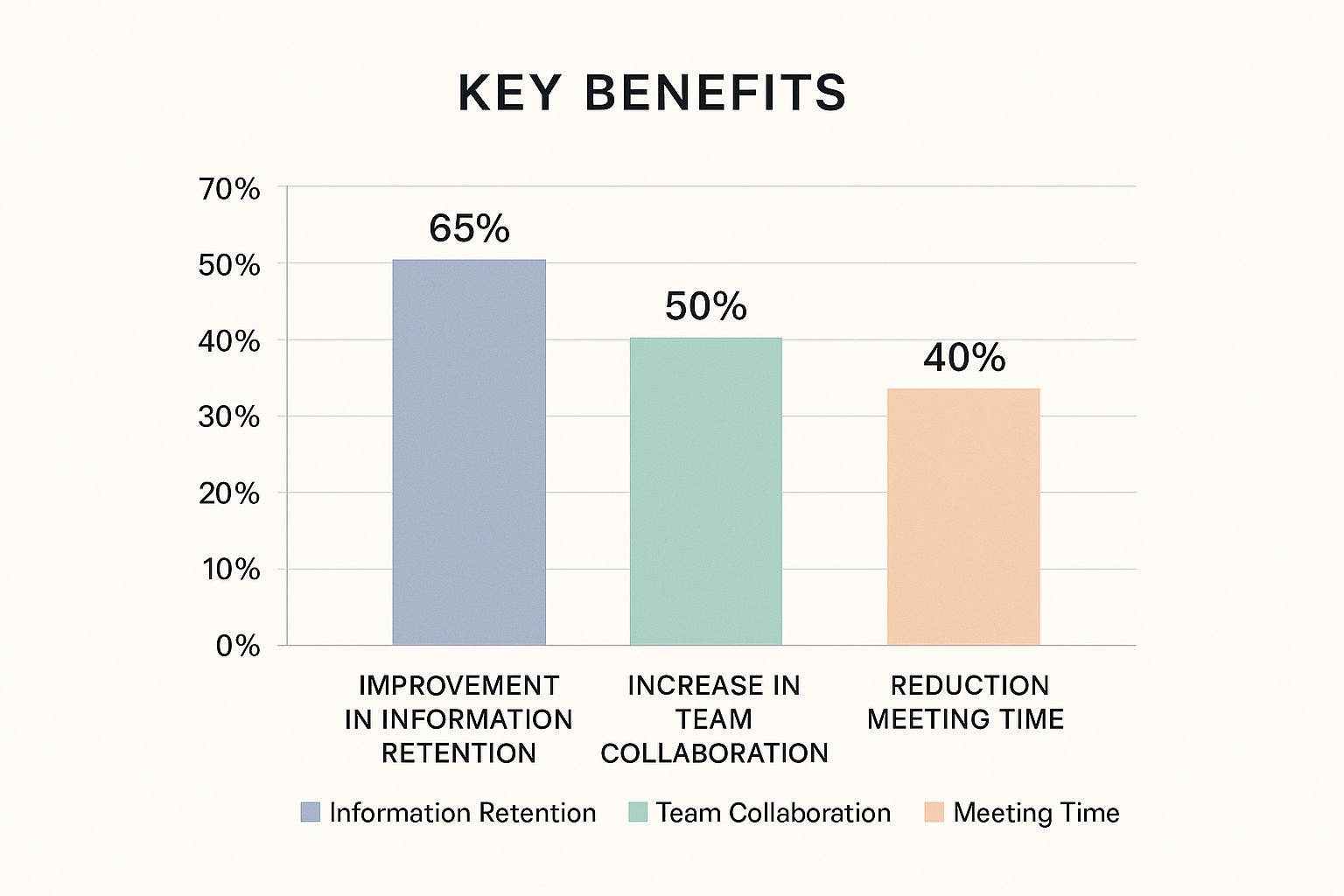
The numbers speak for themselves. A good recording process isn't just about storage; it's about making your team more effective. The data shows a 65% improvement in information retention and a 40% reduction in meeting time when recordings are used effectively.
Creating Professional Recording Environments That Impress
The quality of your video calling recording often comes down to thoughtful preparation, not just expensive equipment. Taking a few minutes to get your environment right before you hit record can make all the difference, impressing your viewers and making sure your message is heard loud and clear. It’s these small adjustments that separate a polished recording from an amateur one.
You don't need a fancy studio to get your lighting right, for instance. A simple ring light or even a desk lamp placed in front of you can make a huge impact. The trick is to have your main light source facing you, not coming from behind. This prevents you from looking like a silhouette and keeps your face clearly visible. A tidy, uncluttered background also helps keep the focus where it should be—on you. A simple bookshelf, a plant, or even a branded virtual background adds a professional touch without being a distraction.
Perfecting Your Audio and Video Setup
Your microphone and camera are your direct lines to your audience. It's a surprising fact, but poor audio is often more jarring than poor video, so getting it right is a top priority.
- Microphone Placement: Try to position your microphone close to your mouth but just off to the side. This simple trick helps you avoid those harsh "popping" sounds from your breath. Even an affordable external USB microphone will be a significant upgrade from the one built into your laptop.
- Camera Angle: Place your camera at eye level. This simple adjustment helps create a more direct and engaging connection with the people you're talking to. Stacking a few books under your laptop is an easy way to achieve this.
- Bandwidth Management: A stable internet connection is absolutely essential for a smooth video calling recording. If you find your connection is a bit shaky, try closing any applications or browser tabs you don’t need. If you have the option, plugging directly into your router with an Ethernet cable is almost always more reliable than Wi-Fi.
This screenshot from the Screendesk website shows how a clean interface can help you manage your recordings without getting overwhelmed.

The clear layout is a great example of how professional tools are designed with usability in mind, letting you concentrate on your conversation instead of fumbling with the software.
Run a Final Pre-Flight Check
Before any important call, it's always a good idea to do a quick test run. Using a tool like Screendesk, you can make a short test recording to double-check your lighting, audio levels, and what’s visible in your background. This quick check takes less than a minute but can save you from embarrassing technical glitches later on. It’s your final chance to ensure every video calling recording you create looks and sounds exactly the way you want it to.
Navigating Recording Ethics and Legal Requirements
Once you've got the hang of the technical side of recording video calls, it's time to tackle the equally important world of ethics and legal rules. This isn’t just about bureaucracy; it's about building trust with your participants and protecting your business. The single most important rule to remember is consent.
Laws can change quite a bit depending on where your participants are located. Some regions only need one person on the call to know it's being recorded (one-party consent). Others, however, require everyone involved to give their permission (two-party consent).
My advice? Always act as if you need two-party consent. It’s the most transparent and respectful way to go. You don't need to give a long legal speech. A simple, friendly announcement at the start of the call works perfectly. Something like, "Just so everyone knows, I'll be recording this session for our notes. Is everyone comfortable with that?" is usually all it takes.
Handling Consent and Privacy
So, what happens if someone objects to being recorded? The best course of action is to respect their wishes and turn off the recording. Trying to persuade them can seriously damage trust. If the recording is absolutely essential, you can explain why—maybe to create a summary for team members who couldn't make it—and then offer to have a separate, unrecorded chat with that person later. It all comes down to clear and respectful communication.
Recording tools are great for enabling work across different time zones and helping with compliance by creating a verifiable record. Platforms like Zoom, Cisco Webex, and Microsoft Teams now offer robust recording features, complete with cloud storage and transcription. While these tools make managing recordings easier, they also place more responsibility on us to handle them correctly. For more on this, you can read the full research about video in business.
Storing and Sharing Recordings Securely
Your responsibilities don't stop when the call ends. How you store and share the recording is critical. These video files often contain sensitive conversations or personal data, making them a target for security issues. Always use secure, password-protected storage for your recordings.
It’s also a smart move to create a clear policy for your team about who can access recordings and how long they should be stored. When you do share them, it's important to use a secure method. To safeguard any sensitive information, you can adopt proven methods for secure document sharing to make sure only the right people can view the content.
Mastering Advanced Recording Features for Business Impact

Once you've got the hang of basic video calling recording, you can start digging into the advanced features that turn those simple video files into genuine business assets. This goes way beyond just storing calls for later. Today’s tools are filled with functions meant to save time, pull out important insights, and make your teams more effective. For instance, AI-powered transcription is a huge time-saver, eliminating hours of manual note-taking and making calls easily searchable.
This shift in recording tech is a big deal, contributing to a global video conferencing market that hit $14.2 billion in 2024. Features like real-time sentiment analysis and automatic summaries aren't science fiction anymore; they're practical tools creating real business value. You can dive deeper into these trends and find additional video conferencing statistics on Zebracat.ai.
Using AI for Smarter Insights
The best video calling recording platforms today do more than just capture what was said and seen. They actually analyze the conversation to give you a much richer understanding.
- Automated Highlight Reels: Think about a one-hour product demo. Instead of asking a team member to watch the whole thing, AI can create a short summary of the key moments. This could include when important features were discussed or when a client asked a make-or-break question.
- Sentiment Analysis: This feature keeps an eye on the emotional tone of a call. It can flag a customer support interaction where a client sounded especially upset, giving a manager a chance to review it and find coaching opportunities for the agent.
- Strategic Breakout Room Recording: When you’re running big workshops, recording individual breakout rooms captures those valuable, small-group brainstorming sessions that usually disappear once the main meeting resumes.
To help you see how these features can be applied, here’s a quick breakdown of some advanced capabilities and where they fit best.
| Feature | Description | Best Use Case | Availability | Impact Level |
|---|---|---|---|---|
| AI Transcription | Converts spoken words into searchable text, often with speaker identification. | Making sales calls, interviews, and meetings easily scannable and accessible. | Common | High |
| Sentiment Analysis | Analyzes voice tone and language to gauge the emotional state of participants. | Monitoring customer support calls for satisfaction or frustration levels. | Intermediate | Medium |
| Automated Summaries | AI generates a concise summary, key topics, and action items from a recording. | Quickly catching up on long team meetings or product demos you missed. | Intermediate | High |
| Keyword/Topic Tracking | Flags specific moments when predefined keywords or topics are mentioned. | Tracking competitor mentions in sales calls or specific feature requests. | Advanced | Medium |
| Breakout Room Recording | Captures discussions from separate, smaller group sessions within a larger call. | Training workshops, virtual events, and collaborative brainstorming sessions. | Intermediate | High |
As you can see, the right features can have a major impact, turning a simple recording into a source of direct business intelligence.
Turning Recordings into Actionable Content
Your recordings are full of potential, but only if they’re easy to act on. Integrating your recording platform with other business software is a crucial step. For example, by connecting Screendesk to a project management tool like Asana or Trello, you can automatically create tasks from action items discussed during a meeting.
To truly get the most from your recordings, it helps to view them as raw material for other content. Many of the same ideas found in video production tips for small businesses are relevant here. Knowing how to record a video call is just the start; learning how to transform that recording into a polished, shareable asset is where you’ll see the real return.
Solving Recording Problems Before They Ruin Important Calls

Even with the best preparation, a video calling recording can sometimes go sideways at the worst possible moment. We’ve all been there: the audio drifts out of sync, the video becomes a pixelated mess, or even worse, the final file is corrupted. These aren't just small hiccups; they can completely undermine the value of an important client meeting or a critical training session. The real secret is to stop reacting to problems and start preventing them.
Your best defense is a solid pre-call routine. Before any important session, always run a quick test recording. This isn't just about making sure your camera and microphone work. It’s about confirming that Screendesk is capturing everything as expected and that you have enough storage space, whether on your local drive or in the cloud. A full hard drive is a surprisingly common culprit behind failed recordings.
When Things Go Wrong Mid-Call
Sometimes, issues pop up right in the middle of a live call. If you suddenly notice video lag or audio dropouts, it's often a network issue. A quick fix is to close any applications or browser tabs you don't need, which can free up bandwidth and stabilize your connection without derailing the conversation.
For truly mission-critical sessions, it pays to have a backup plan. I've seen many professionals run a secondary, local screen recorder simultaneously. It’s a simple safety net that can save the day.
After the call, you might still run into playback problems. If a recorded file won't open, the first thing to try is a different media player like VLC. Codec compatibility issues are a very common reason for this. To get ahead of these issues, you can read our guide to recording your screen and video for more preventative tips. A proactive approach to troubleshooting ensures your video calling recording efforts produce reliable, professional results every time, protecting your most valuable content.
Key Takeaways
Making video calling recording a standard part of your process is more than just clicking a button. It’s about being intentional with your setup, the tools you choose, and what you do after the call ends. When you get this right, your recordings stop being simple archives and start becoming powerful business tools that can speed up training, solve problems faster, and even protect your company.
Your Setup and Platform Checklist
A great recording starts long before the call does. Think of your recording environment as the foundation for everything else.
- Audio Comes First: People are surprisingly forgiving of grainy video, but they won't tolerate crackly, hard-to-hear audio. An external microphone is a small investment that makes a massive difference in quality.
- Pick the Right Tool for the Job: While the built-in recorders on some platforms are handy, a dedicated tool like Screendesk is built for business. It delivers higher quality and integrates with your helpdesk, which cuts down on a surprising amount of administrative work.
- Do a Quick Sound Check: Before any important call, run a quick 30-second test recording. This is my go-to move to catch any issues with lighting, audio levels, or something distracting in the background. It prevents most of the common technical hiccups.
Ethics, Troubleshooting, and Advanced Use
Once you hit record, your focus shifts to managing the recording and using it effectively. The best teams stand out by respecting privacy and thinking strategically about how to use the footage.
- Always Get Consent: This is the golden rule of video calling recording. Make it a habit to announce that the call is being recorded right at the beginning. This maintains trust and ensures you’re legally covered.
- Have a Backup Plan: We’ve all been there—tech sometimes fails at the worst moment. For truly critical meetings, I recommend running a secondary, local screen recorder as a safety net. It’s a simple step that ensures you won't lose an important conversation to an unexpected glitch.
- Move Beyond Basic Recording: Don't just store your videos. Explore features like AI-powered transcription and automated summaries. These tools can turn a long video into a searchable, actionable resource that you can easily share with your team.
Ready to elevate your customer support with flawless video calling recording? Discover how Screendesk can transform your team's efficiency and effectiveness.
